Guides
Add invoices by email
Turn on a workspace address, forward suppliers' invoices to it, and add each one from AP / AR with one press; nothing arrives as a payable by itself.
Forward an invoice to your workspace's address, and Vestiarion reads it the way From a document reads one. It waits on AP / AR under From email until an owner or admin adds it as a payable with one press, or dismisses it. Nothing that arrives by email is added, or paid, by itself: once it is added, the agent decides it as any payable, and pays on Arc testnet under every check it applies.
1. Turn it on
An owner or admin opens Settings and finds Invoices by email.
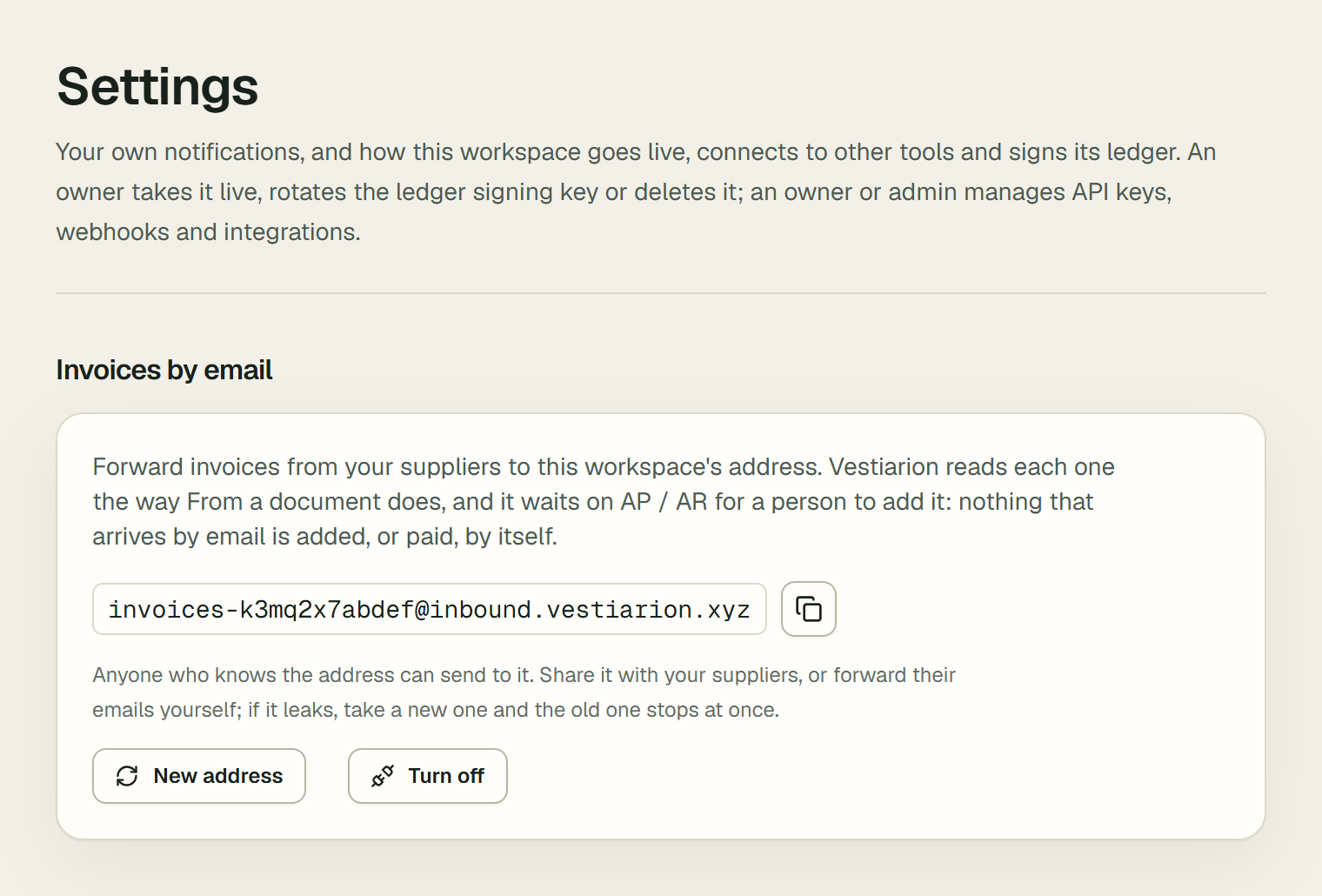
- Choose Turn on. The section shows the workspace's address,
invoices-…@…, with Copy the address. - Give the address to your suppliers, or forward their emails to it yourself.
Anyone who knows the address can send to it. If it leaks, choose New address: the old one stops at once. Turn off stops it; the emails already in stay on AP / AR. The ledger records invoice_inbox_on, invoice_inbox_changed and invoice_inbox_off, never the address itself.
Other members see that it is on, and that An owner or admin has the address.
2. What happens to an email
Vestiarion reads the first PDF, .eml or .txt file attached, of at most 4 MB, or the email's own text when nothing is attached. Within a minute it is on AP / AR, under From email:
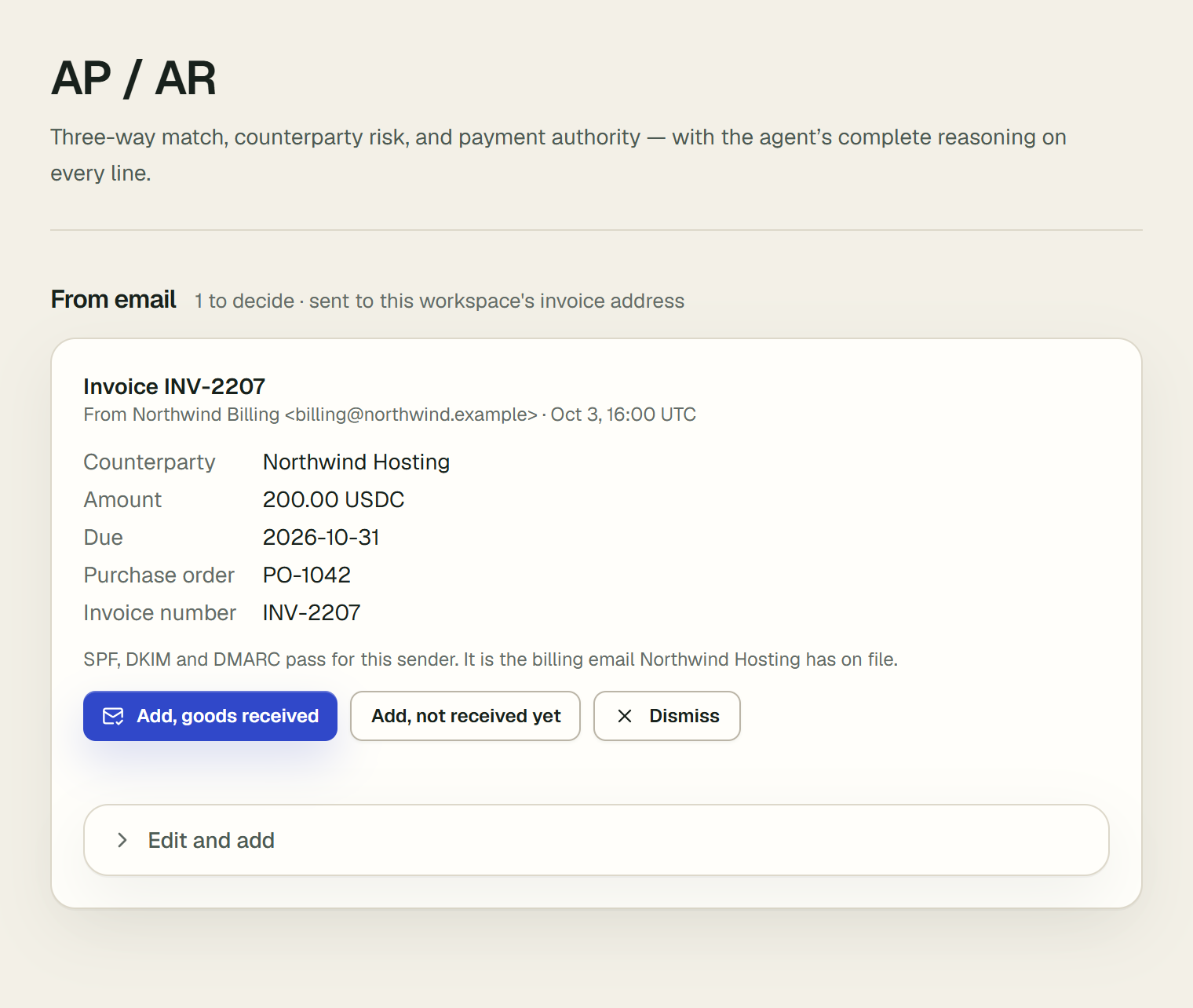
- An email ready to add shows the counterparty it matched, the amount, the due date, the purchase order, and what to check.
- Cannot be added as it was read says why: no counterparty in the workspace matches the vendor, or no amount or due date could be read. A vendor that matches none shows by its name, marked "not in Counterparties". "Fix what is missing with Finish and add."
- Could not be read says why: a scan with no text, a file over 4 MB, or nothing to read. A scanned PDF says "Its PDF has no text to read; it may be a scan. Ask the sender for the invoice as a PDF with text, or type it in with Finish and add."
- An invoice sent as a photo or picture is not read. Its email says so first: "Its invoice is attached as an image (…), which Vestiarion cannot read yet. Ask the sender for the PDF, or type it in with Finish and add."
The invoice can be laid out any way and written in any language: the model reads it. Amounts written with a decimal comma, such as 3,50 USDC or 1.200,00 EUR, are read as 3.50 and 1200.00. When the due date comes from a date written in numbers whose day and month could swap, such as 03/11/2026, a note says which day was taken and which it can also mean, so you can "Check it against the invoice."
Each says whether the sender passed SPF, DKIM and DMARC, and whether it is the billing email the counterparty has on file. That is a check for you, never permission: Vestiarion adds nothing by itself.
If the workspace has Slack, its channel is told a new invoice arrived by email, with a Review in AP / AR link. The ledger records invoice_email_received, with the sender's address mostly hidden.
3. Add it, or dismiss it
An owner or admin chooses:
- Add, goods received or Add, not received yet: the payable is added as one added on AP / AR is, by you. The ledger's
create_invoiceentry names you, and addsvia: "email", the email's id in the inbox and the hash of the document. The agent usually decides within a minute. - Edit and add, on an email ready to add, or Finish and add, on one that cannot be added as it was read or could not be read: the invoice form opens with what was read. Choose the counterparty, fix the amount or the due date, tick Goods or services received if you have them, and choose Add invoice. If you type over an amount that was read, the form names it, for instance "The invoice was read as 1.20: check this amount before you add it." It is always a payable. The
create_invoiceentry names the email as above, and lists the fields you changed from what was read. An amount typed wrong can't be edited afterwards: Reject the payable while it waits, and add it again. - Dismiss: the email leaves the list, and the ledger records
invoice_email_dismissed.
An email is added once. A second press is told "This email was already decided, or cannot be added as it was read."
What is kept
The sender, the subject and what was read. The document itself is not kept, only its hash, as with From a document. Resend receives the email on Vestiarion's behalf.
For the person who runs the deployment
In Resend, the Receiving tab of Emails gives a <id>.resend.app domain that receives at any address, with no DNS to set; or turn on receiving for a subdomain and add Resend's MX record. Under Webhooks, add https://<your deployment>/api/email/inbound for the email.received event and copy its signing secret. Then set INBOUND_EMAIL_DOMAIN, RESEND_INBOUND_WEBHOOK_SECRET, and RESEND_RECEIVING_API_KEY when the key that sends email cannot read received ones. Without them, the section does not show and the route answers 404; every request to it is checked against the signing secret.