Guides
Go live on Arc testnet
Create the workspace's wallets, fund them with testnet USDC and take the agent live.
A workspace starts in sandbox. Going live gives it treasury wallets on Arc testnet, funded with testnet USDC from Circle's faucet, and sets the agent to pay from them on its own schedule. This page takes you through it, from Settings to the confirmation.
Only an owner of the workspace can take it live. Everyone else sees the workspace's status in the same place, with the line "An owner can connect Circle and take this workspace live from here."
Before you start
Until the workspace has made its first payment on Arc testnet, the console shows owners and admins a Get started checklist: add a wallet, fund it with USDC, go live, add a payee with an Arc address, add a payable, and the first payment. Each step ticks itself off from the workspace's own records, and the next one links to the page where it is done. Read the guide opens this page until the workspace is live and funded, and Your first payment after that. The checklist disappears once the workspace is live and its first payment has settled.
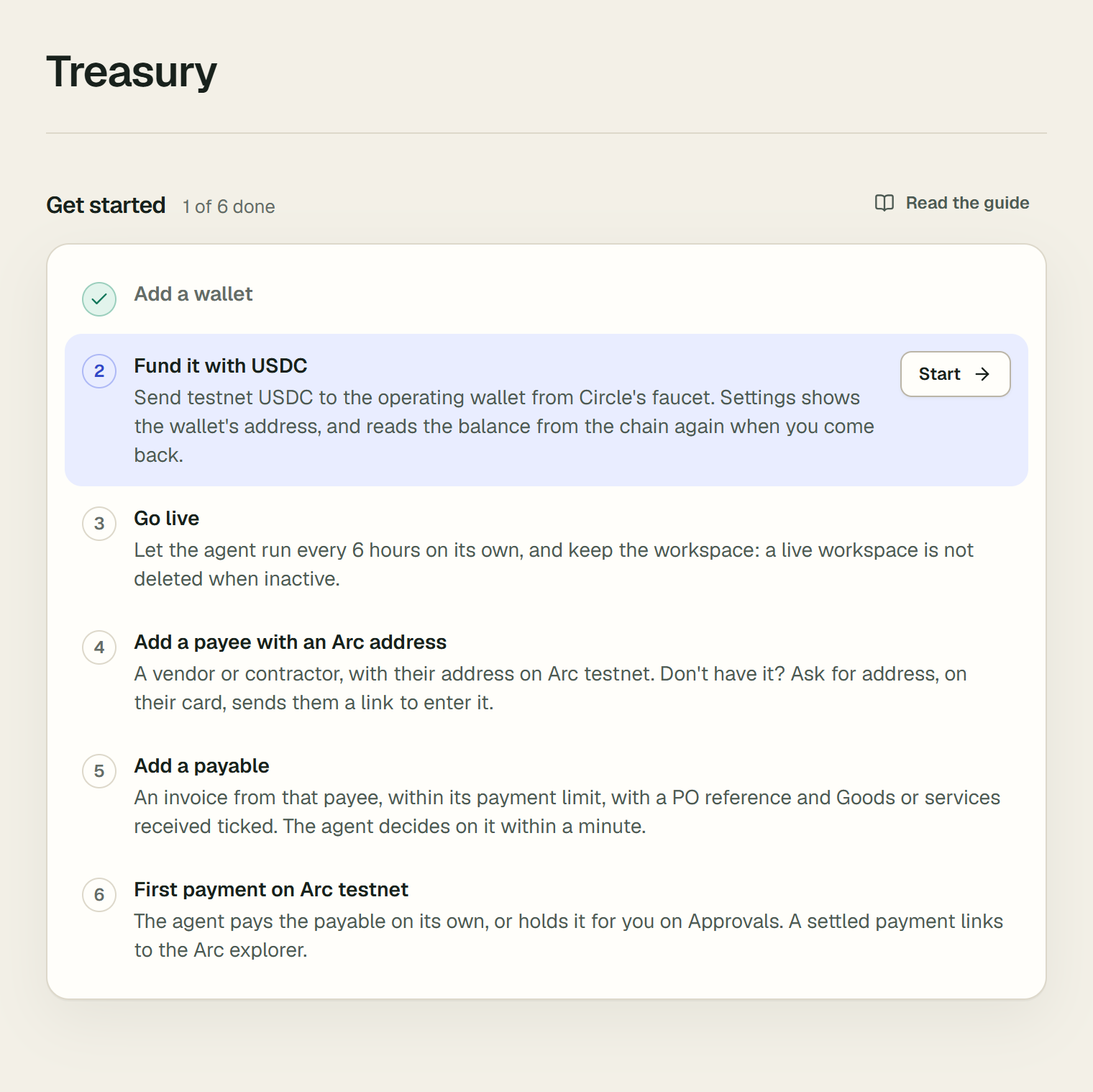
Open your workspace and go to Settings, at /o/<slug>/settings. Go live opens the Workspace group, and its badge shows where the workspace is. The section shows one step of three at a time:
- Choose where the wallets live.
- Create the treasury wallets.
- Fund the operating wallet, then go live.
1. Choose where the wallets live
Step 1 depends on the deployment:
- When the deployment has hosted wallets, step 1 is "Choose where the wallets live". It offers a hosted testnet wallet first (path A), and your own Circle account under "Connect your own Circle account" (path B).
- Otherwise, step 1 is "Connect your Circle account" and shows only the form for your own account. Follow path B.
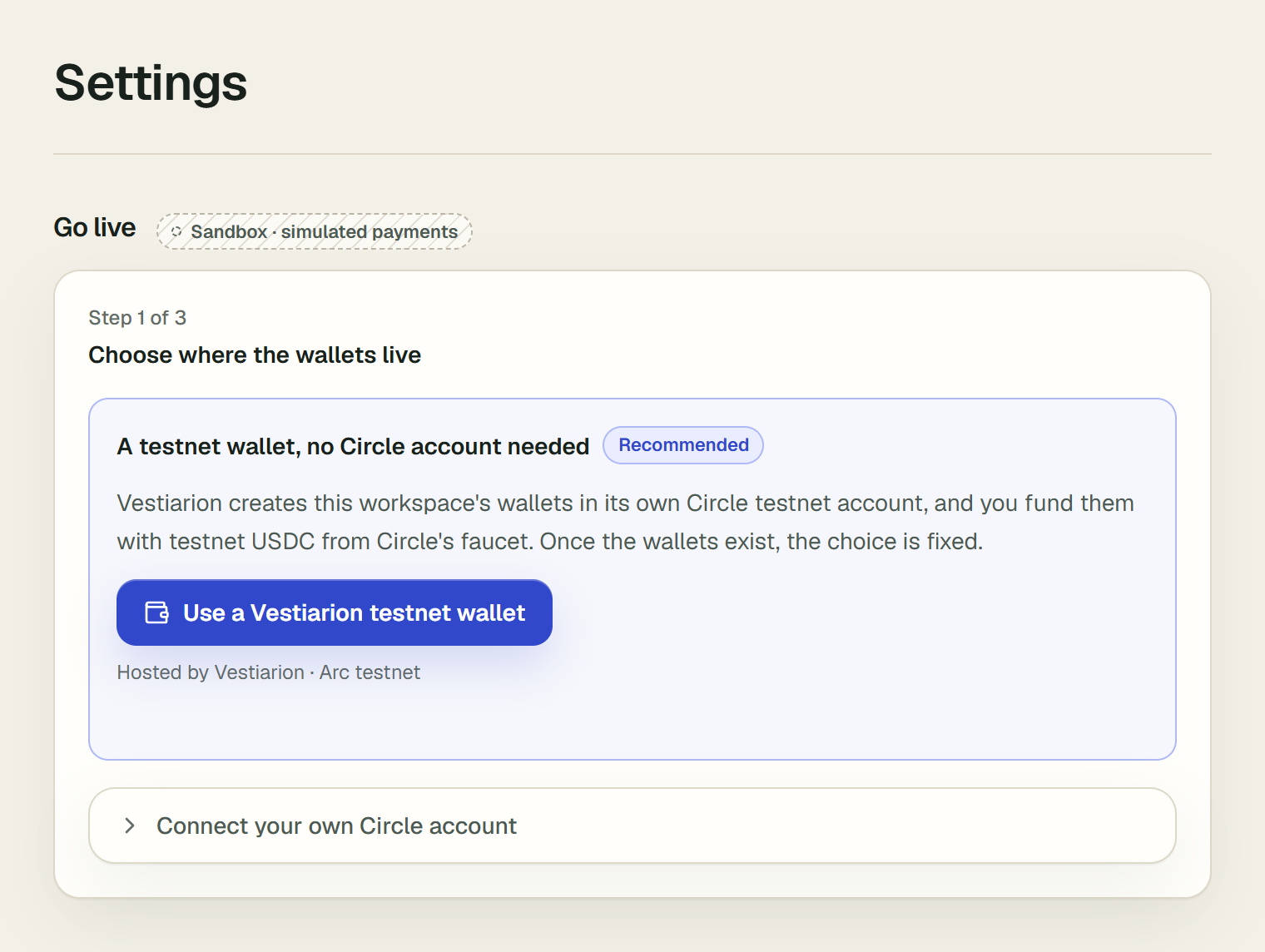
Path A: a Vestiarion testnet wallet
You don't need a Circle account for this path. The workspace's wallets are created in Vestiarion's own Circle testnet account, in a wallet set of their own.
- Under "A testnet wallet, no Circle account needed", choose Use a Vestiarion testnet wallet. The line under the button reads "Hosted by Vestiarion · Arc testnet".
- The page confirms: "This workspace will use a Vestiarion testnet wallet; create its treasury wallets next."
Until the wallets are created, you can still change your mind. Open Connect your own Circle account instead and follow path B. Once the wallets exist, the choice is fixed, and the page says "To use your own Circle account, start a new workspace."
Path B: your own Circle account
For this path you need two values from your account in the Circle developer console:
- An API key. Create a testnet API key in the console, because the workspace's wallets are on Arc testnet.
- An entity secret. The entity secret is the key that secures developer-controlled wallets. Generate it and register it in the Circle console first, as Circle's guide to registering an entity secret describes, and keep its recovery file safe. Vestiarion does not register it for you. The field asks for "The one registered for developer-controlled wallets."
Then, in Go live:
- Open Connect your own Circle account, if the step shows the hosted choice first.
- Paste the key into API key and the secret into Entity secret.
- Choose Connect Circle. Circle checks the API key before anything is stored. When it accepts the key, the page says "Circle is connected." Both values are then encrypted, and they are never shown again.
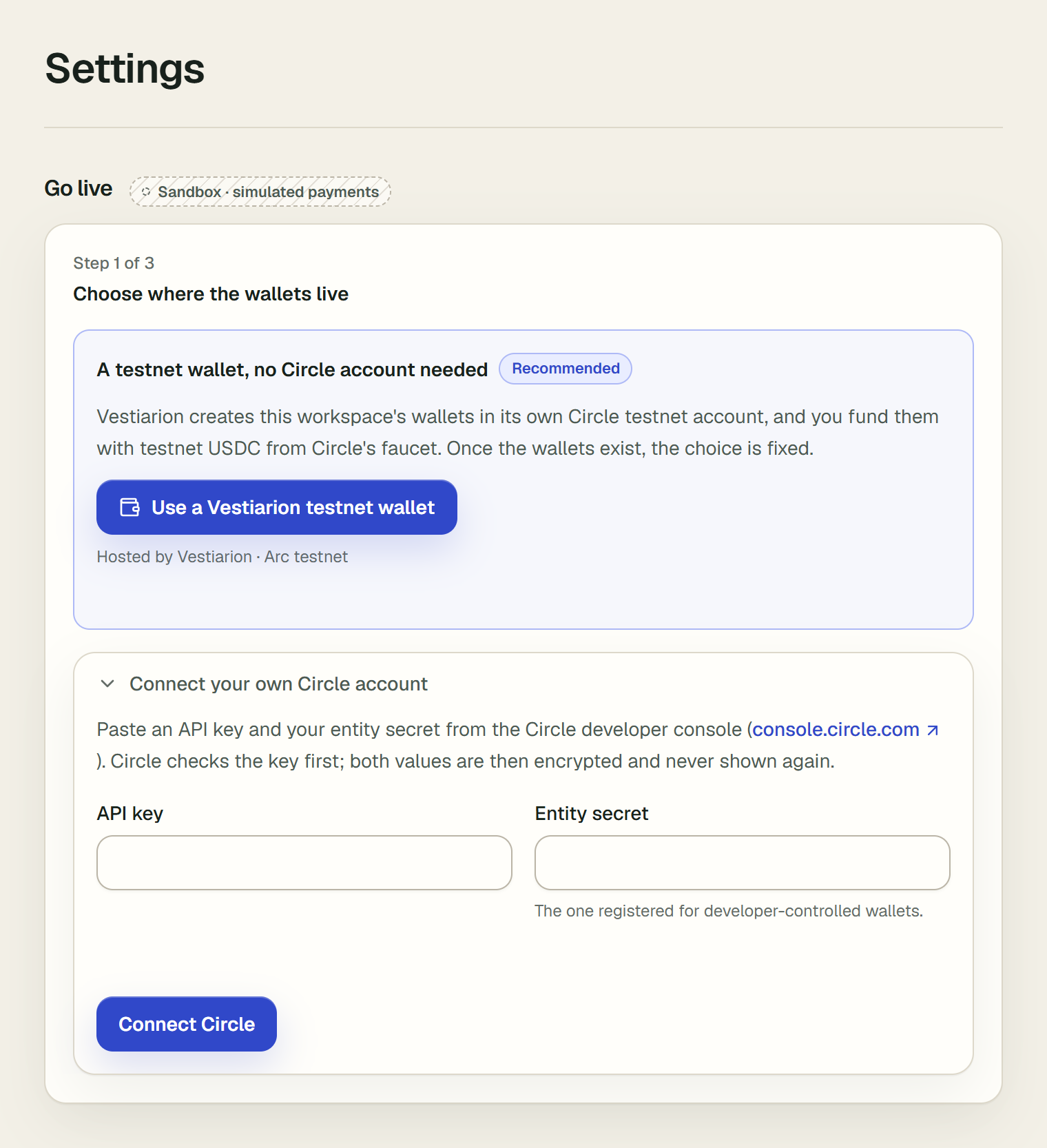
The entity secret itself is checked in step 2, when the wallets are created. To change either value later, open Replace Circle credentials. The new values must belong to the same Circle account, because the workspace's wallets are in it.
2. Create the treasury wallets
The step is headed "Create treasury wallets". It creates one wallet on Arc testnet for each of the workspace's accounts. With your own Circle account, it also proves the entity secret.
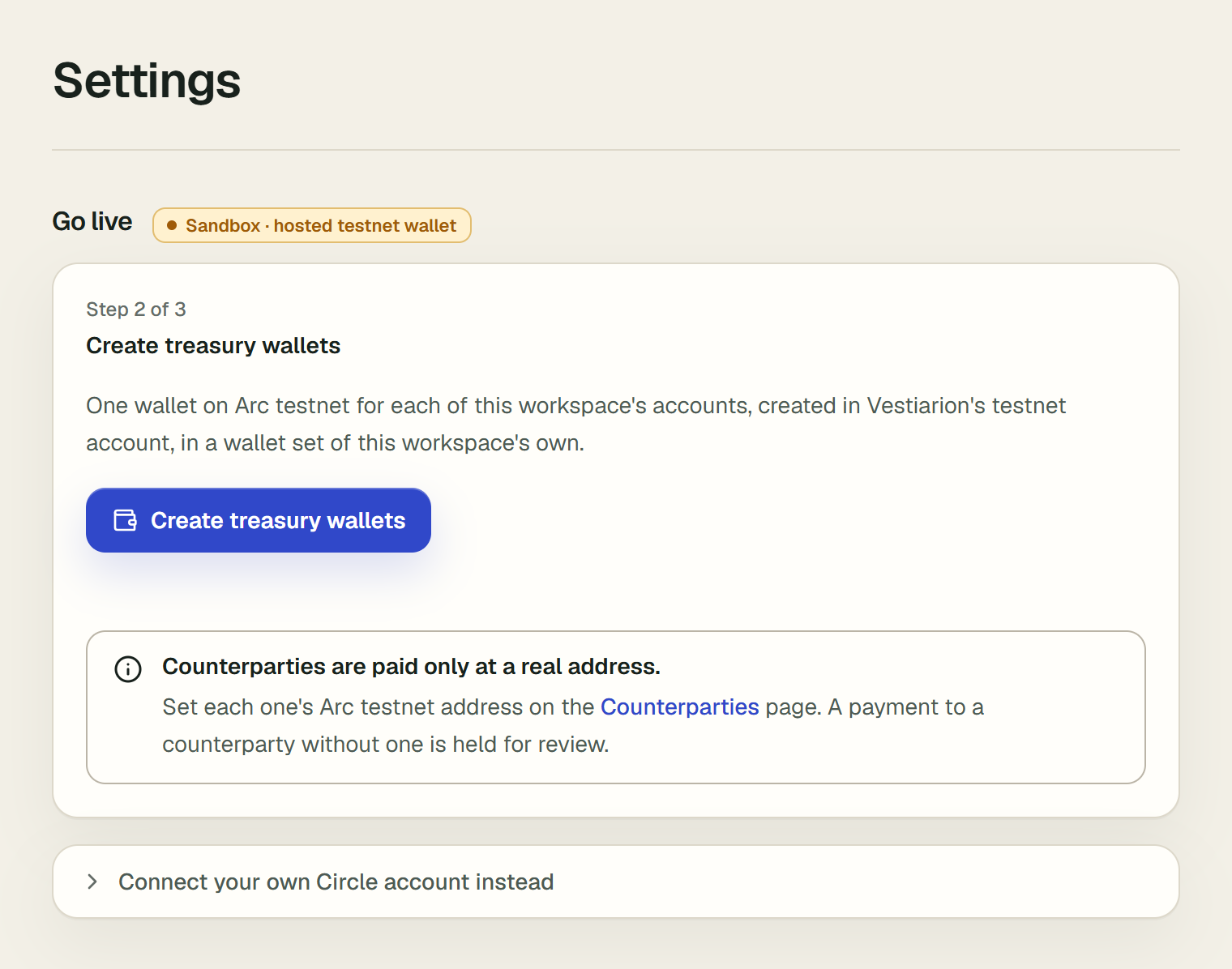
- Choose Create treasury wallets.
- The page confirms with "Treasury wallets created: n." and lists each account's wallet address, with a button to copy it. If every account already has one, it says "Every account already has a wallet."
Under the button, a note reads "Counterparties are paid only at a real address." Each counterparty needs its Arc testnet address before the agent can pay it. Your first payment shows where to enter it.
3. Fund the operating wallet
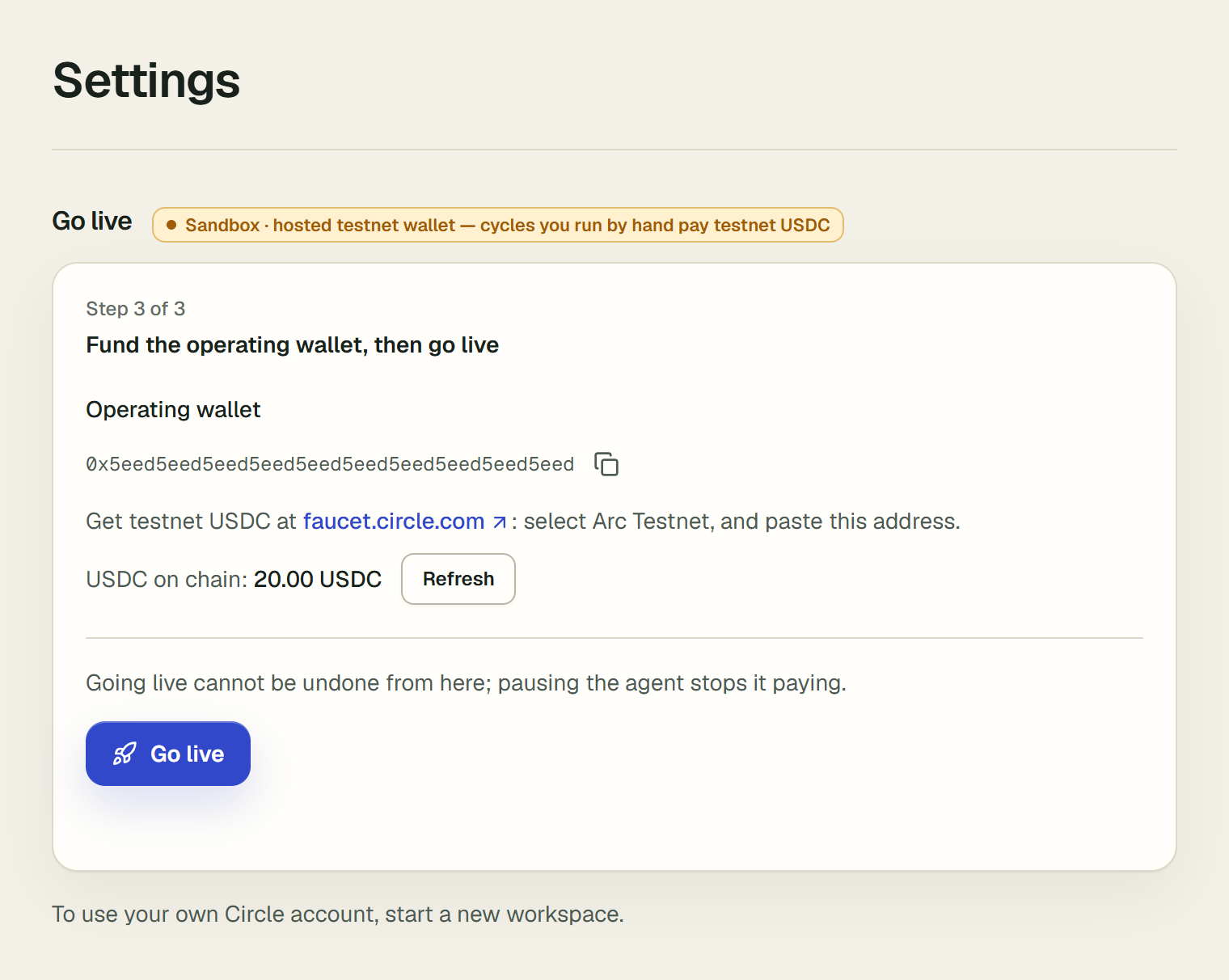
The step is headed "Fund the operating wallet, then go live". The agent pays from the operating wallet, so this is the wallet to fund.
- Under Operating wallet, copy the address with the copy button beside it.
- Open faucet.circle.com. As the page says, "select Arc Testnet, and paste this address", then request testnet USDC.
- Come back to Go live. The balance beside "USDC on chain:" is read from the chain when the step opens, and again on each Refresh. While it is 0, the page also reads it again when you return to its tab, and every 30 seconds while the tab is open, for 15 minutes, so the USDC shows without a refresh.
4. Go live
- Choose Go live. The step warns you first: "Going live cannot be undone from here; pausing the agent stops it paying."
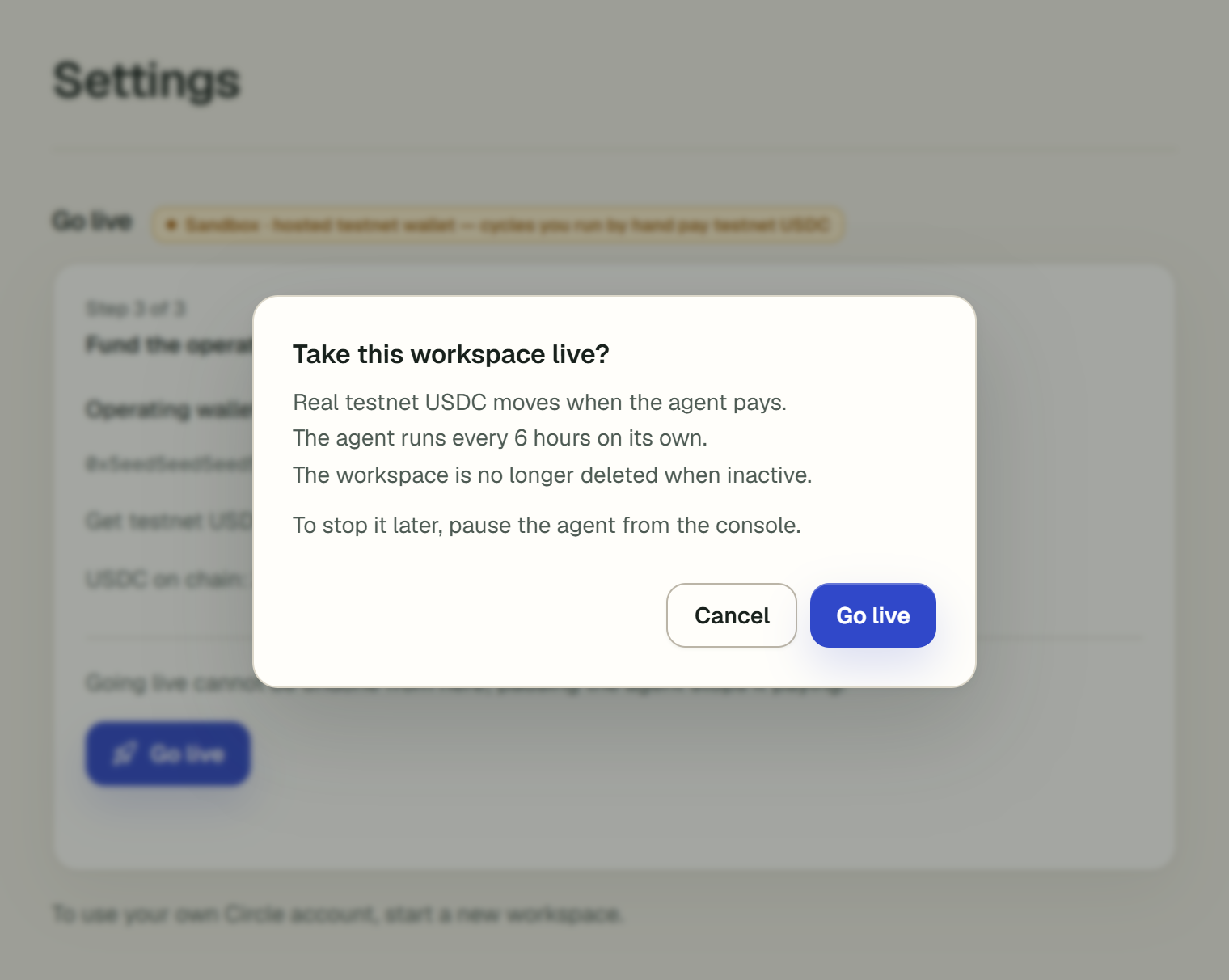
- A dialog asks "Take this workspace live?" and lists what changes:
- "Real testnet USDC moves when the agent pays."
- "The agent runs every 6 hours on its own."
- "The workspace is no longer deleted when inactive."
- "To stop it later, pause the agent from the console."
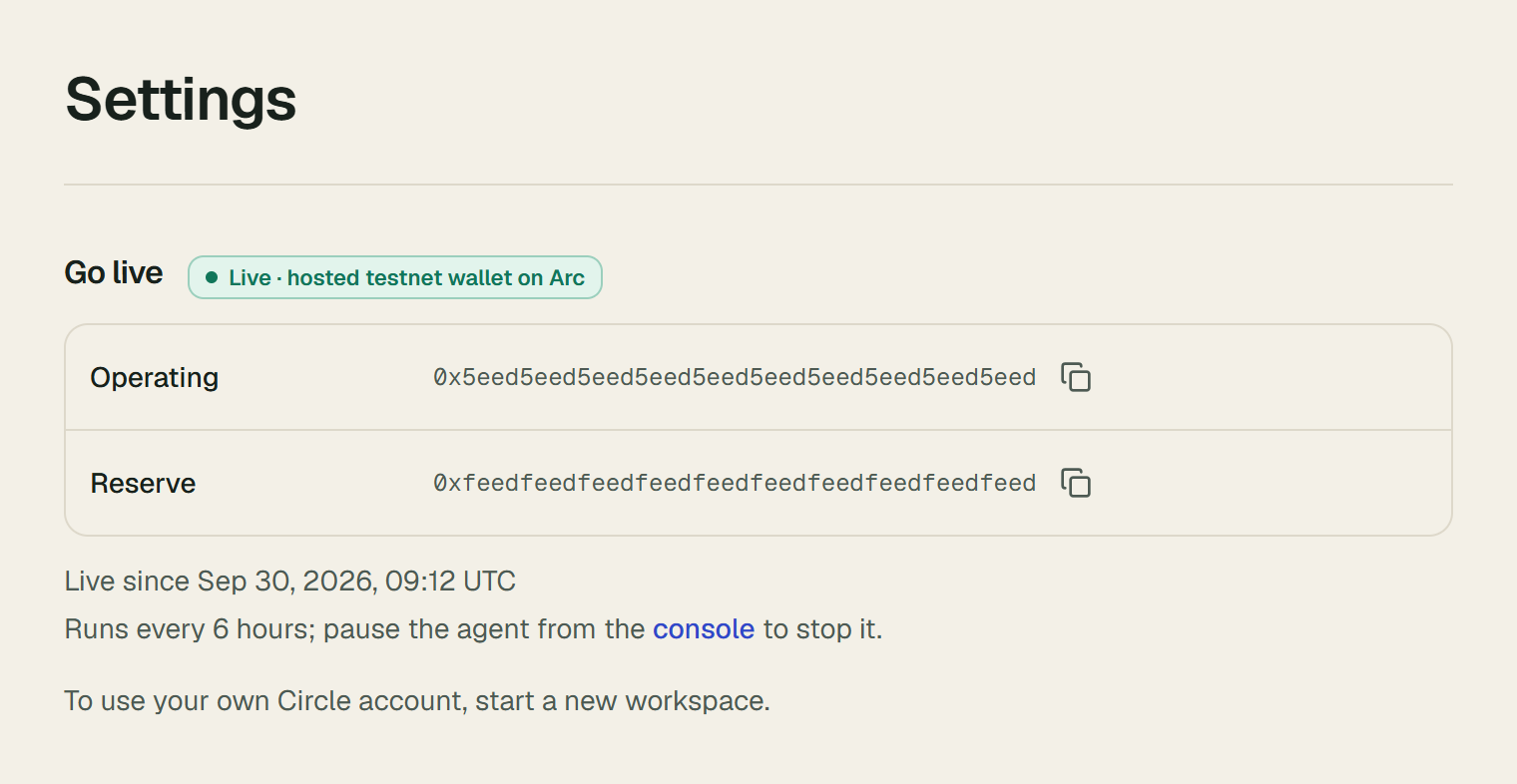
- Confirm with Go live. The page says "This workspace is live." and the badge changes to "Live · paying on Arc testnet", or to "Live · hosted testnet wallet on Arc" on path A.
Next, make your first payment.
What changes when you go live
- The agent runs on a schedule. A live workspace's agent runs a cycle every 6 hours on its own, with no one pressing a button. It also runs one, usually within a minute, after anything that gives it a decision to make, such as a payable added or returned to it. An owner or admin can still run one at any time with Run cycle now on the console. The console is Treasury in the app's navigation.
- Payments move testnet USDC on Arc from the operating wallet, within the guardrails. Anything the agent will not pay waits in Approvals.
- The workspace is kept, however long it is inactive.
- Going live is one-way. Nothing in the app switches a live workspace back to sandbox.
To stop the agent, go to the console and choose Pause agent. You can give a reason, which is shown on every page and kept in the ledger. A paused agent runs no cycle and moves no money, and its scheduled runs are skipped. People can still pay or reject from Approvals. Owners, admins and approvers can pause the agent. Only owners and admins can start it again, with Resume agent.
Earn on idle cash with USYC
Every cycle, the agent decides whether idle USDC should earn in a reserve or come back to the operating wallet before payments fall due. Until you turn the USYC reserve on, that reserve is simulated. Turned on, the agent buys real USYC, Circle's tokenized money market fund, on Arc testnet.
-
Get the wallets allowlisted. USYC is permissioned: Circle allowlists the wallets that may hold it. Settings → USYC reserve shows the two addresses: the operating wallet, which buys USYC, and the reserve wallet, which holds and sells it. Ask Circle Support to allowlist both for USYC on Arc testnet.
-
Turn it on. An owner or admin chooses Turn on. Vestiarion first checks on Arc testnet that both wallets are allowlisted, and names any that is not. It also refuses while the simulated reserve still holds anything, so no simulated balance is ever counted as USYC. The change is signed in the audit log as
usyc_reserve_enabled. It cannot be turned off from the app. -
Let the agent decide. On its next cycles:
- A sweep. The operating wallet approves USYC's Teller contract for the USDC, then deposits it, and the USYC goes to the reserve wallet.
- A redemption. The reserve wallet sells the USYC it needs, and the USDC comes back to the operating wallet.
Each move is a real transaction, linked from its decision card on the console.
Payments come first. Each cycle, before it decides any payment, the agent adds up the USDC payables due today and the verified milestones waiting to be paid, except one whose USDC is locked in escrow. When the operating wallet holds less, it sells the USYC the difference needs first, so those payments are made in that cycle rather than held. The audit log records the move as cash_brought_back. A payment still held because the cash was not there is decided again at the first cycle after cash comes in: from the faucet, from a redemption, or from Bring cash back. The model that decides sweeps and redemptions is told the same: every payment leaves from the operating wallet, and the reserve's cash counts toward a payment only once it is back there.
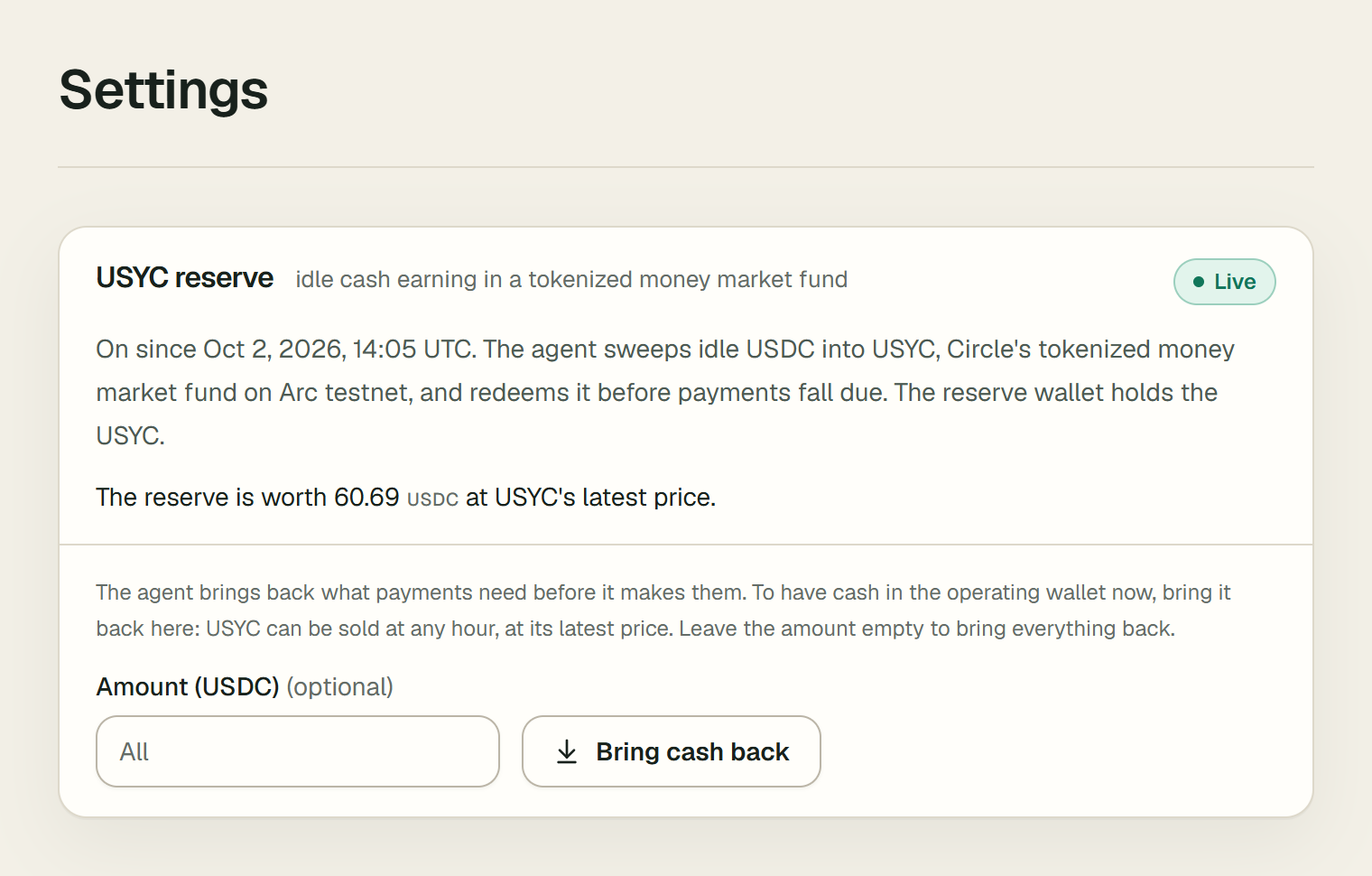
To bring cash back yourself, an owner or admin opens Settings → USYC reserve, enters an amount in Amount (USDC), or leaves it empty for everything, and chooses Bring cash back. The reserve wallet sells that much USYC at its latest price, at any hour, and the USDC comes back to the operating wallet. The audit log records it as cash_brought_back, by you. Vestiarion then runs a cycle, so payments waiting for cash are made within a minute, unless the agent is paused.
The agent then sweeps nothing back into USYC for 24 hours, so the cash stays in the operating wallet for what you brought it back for. The written policy's reasoning says so, for example "A person brought 152.211756 USDC back from the reserve at 2026-10-05 09:05 UTC, so the agent sweeps nothing until 2026-10-06 09:05 UTC." A sweep the model chooses anyway is not made, and its decision says why. Redemptions for what falls due go on as before.
A person's payment draws on the reserve too. When Approve and pay, or Pay now on a held milestone, needs more than the operating wallet holds, it brings the difference back from the reserve first, then pays. You do not need to bring cash back yourself for it.
What to expect:
- When USYC can be bought. Only between its daily price update, around 08:30 New York time, and 14:00 New York time, on business days. Outside that window the agent is told it cannot sweep. A sweep it decides anyway is not made, and the decision says why. Redemptions are possible at any time.
- What the reserve is worth. Every cycle reads it from the chain: the reserve wallet's USYC at the latest price. The reserve no longer shows "simulated", and its yield is the fund's own over the last days, which is what the agent weighs a sweep against.
- When a sweep pays. The agent sweeps only when the yield beats what the two transfers cost. It counts the yield over how long the swept cash would stay, up to 30 days: what falls due is paid from the operating wallet first, and only what it cannot cover comes back from the reserve, on its day.
- Bounded moves. Code sets how much the agent may move. A sweep never takes the operating wallet below its buffer for what falls due within 7 days. A redemption brings back at most what falls due within 14 days needs, with a 15% cushion, and at least what the written policy redeems. The model is told these bounds. A move outside them is brought within them, and its audit log entry keeps what the model chose, as
boundedByCode. - The contracts. USYC, its Teller and the allowlist's Entitlements contract, with their addresses, are on Contracts on Arc testnet.
- Fees. Buying and selling cost nothing for these wallets on Arc testnet, and Circle's Gas Station pays the network fee. The price rises day by day as the fund earns, about 3.4% a year at the end of September 2026.
When something fails
A failed step shows one of these messages under its button. You can repeat any step. Wallets created before a failure are kept, and creating the wallets again adds only the missing ones.
| Message | What to do |
|---|---|
| Paste both the API key and the entity secret. | Both fields are required. Paste each value in full. |
| Circle did not accept this API key. | Check that you copied the whole key, that it is still active in the Circle console, and that it is a testnet key. |
| This Circle API key is for Arc mainnet (LIVE_API_KEY). This workspace is on Arc testnet: paste a test key (TEST_API_KEY). | Vestiarion runs on Arc testnet. In the Circle console, copy an API key from the testnet side: it starts with TEST_API_KEY. |
| Could not reach Circle; try again. | Circle did not answer in time. Try the step again in a moment. |
| This workspace's wallets belong to the connected Circle account; use its credentials. | The credentials belong to a different Circle account from the one that holds the wallets. Use that account's API key and entity secret. |
| Connect Circle first. | Step 1 is not done. Choose the hosted wallet, or connect your Circle account. |
| Circle did not accept the entity secret; reconnect with the right one. | The entity secret is not the one registered to the API key's account. Open Replace Circle credentials, paste the registered secret, then choose Create treasury wallets again. |
| Create the treasury wallets first. | Complete step 2, then go live. |
| This workspace is already live. | It went live already, from another tab or by another owner. Reload the page. |
| The stored Circle credentials cannot be read; reconnect. | Paste the API key and entity secret again under Replace Circle credentials. |
| The Circle credentials changed while going live; try again. | Someone replaced the credentials while this step was running. Reload the page and repeat the step. |
| This workspace has no operating wallet; it cannot take new credentials. | This appears when replacing the credentials of a live workspace. The new ones cannot be proven without an operating wallet, so the stored credentials stay. |
| Hosted testnet wallets are not available on this deployment. | Connect your own Circle account (path B). A workspace that already uses a hosted wallet pays nothing until hosted wallets are available again. |
| A workspace with its own Circle account or wallets cannot switch to a hosted wallet. | This workspace already has Circle credentials or wallets. Continue with your own account. |
| All hosted testnet wallets are taken; connect your own Circle account instead. | Follow path B with your own Circle account. |
| This workspace's wallets are hosted by Vestiarion; start a new workspace to use your own Circle account. | The hosted wallets exist, so the choice is fixed. Create a new workspace to use your own account. |
| Could not read the balance from Circle; try again. | The balance could not be read. Choose Refresh again. |
| Remove the sample data first. It exists only to try the agent with simulated payments. | Open the console and choose Remove sample data, then connect Circle or choose a wallet host. |
| Something went wrong; try again. | An unexpected error. Try the step again. |