Guides
Get the agent's decisions in Telegram
Connect your own Telegram chat to a workspace: the agent's decisions as it makes them, what is safe to spend and waiting, and invoices sent to the bot.
Connect your own Telegram chat to a workspace, and the chat tells you what the agent decided, a minute after it decides. You can ask it what is safe to spend and what waits for a person, and send it an invoice to add as a payable. The bot never approves or pays anything: what the agent stopped is still decided in Vestiarion, behind your sign-in.
1. Connect your chat
Open Settings in your workspace. Every member sees a Telegram card at the top, under Notifications, whatever their role.
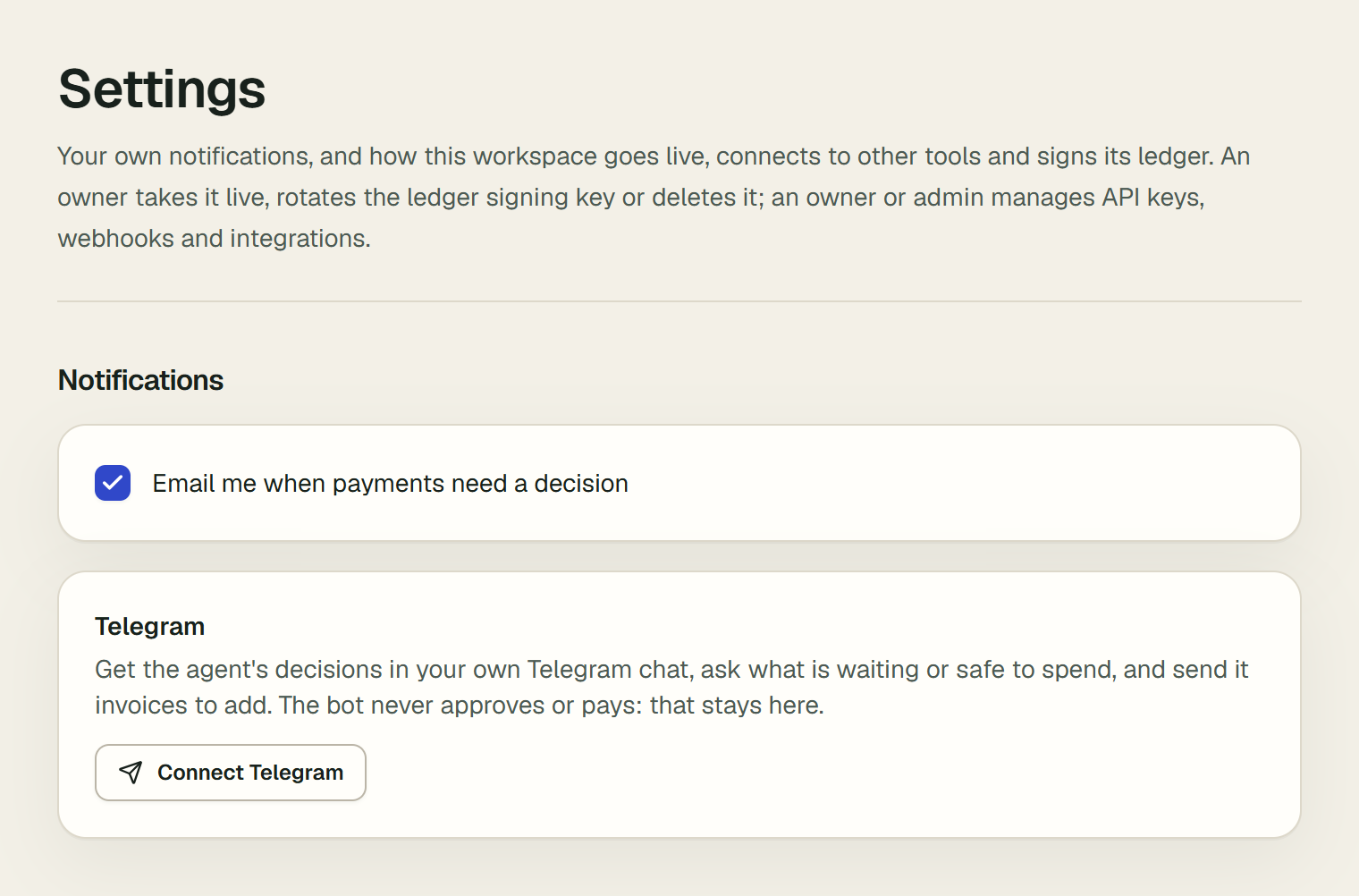
- Choose Connect Telegram. The card gives you an Open Telegram button. The link works once, for 10 minutes.
- Choose Open Telegram. Telegram opens a chat with the Vestiarion bot. Press Start.
- The bot answers that the chat is connected to your workspace, and lists what you can ask. Back in Vestiarion, the card now says which Telegram account is connected, and since when.
If the bot answers "This link was already used or has expired.", choose Connect Telegram again for a new link. A link connects one chat to your membership of one workspace; the ledger records telegram_connected with your Telegram username masked.
The bot works only in a private chat with you. Added to a group, it answers "I only work in a private chat" and shows nothing, so a workspace's payments never reach people who are not its members.
2. What the chat receives
After each cycle, the chat gets one message listing what the agent decided since the last one: what it paid, scheduled, released or received, and what it stopped. Each decision says why, and links to where you see it in Vestiarion.
Acme · the agent decided 2 things

✅ Paid Centronex 0.35 USDC · 26 s after it was added.
DeepSeek decided, as the written policy would. Checks passed: purchase order and goods, the 2.00 USDC limit, screening.
Arc testnet transaction · How it decided

⏸ Held Jiren 3.00 USDC for you.
The invoice is above Jiren's 2 USDC payment limit.
Decide in Approvals- ✅ marks what was done; Arc testnet transaction opens the payment on the explorer.
- ⏸ marks what the agent stopped. Decide in Approvals opens the payable in Vestiarion, where you approve, reject or return it.
- A chat is told only about decisions made after it was connected. A busy cycle's message ends with how many more decisions are in the console.
3. Ask it
| Ask | What you get |
|---|---|
/today | Safe to spend today, what is due in the next 30 days, how many payments wait for a person, and what the agent pays next |
/waiting | Each payable or milestone waiting for a person, the first sentence of why the agent stopped it, and a link to decide it |
/ledger | Whether the signed ledger is intact, checked the way Verify hash chain checks it |
/workspaces | Your connected workspaces, to switch between them |
/disconnect | Stops this workspace's decisions coming to the chat |
/help | What the bot does, and what it never does |
You can also ask in plain words, in English or Vietnamese: "what is held?", "còn tiêu được bao nhiêu?". A model only picks which of the questions above you asked; the answer is always read from your workspace and written by code, so no figure comes from the model.
4. Send it an invoice
An owner or admin can send the bot an invoice: a PDF, an .eml or .txt file of at most 4 MB, or the invoice's text pasted into the chat. The bot reads it the way From a document on AP / AR reads one, and shows every field it read, with what to check and the model's note, marked as The model's note: it can be wrong.
When it read a counterparty already in the workspace, an amount and a due date, three buttons follow:
- Add, goods received adds the payable with the goods or services marked received.
- Add, not received yet adds it without. The agent then asks for the goods to be received before it pays.
- Cancel answers "Not added." and adds nothing.
After Add, the bot says the payable was added. The agent usually decides within a minute, and its decision will be sent here, to the same chat. A draft can be added once, within an hour; after that the bot says "This draft was already used or has expired." Send the invoice again to read it anew.
The bot does not read photos: it asks you to Send the invoice as a PDF, or paste its text. When it cannot add an invoice from the chat, because no counterparty in the workspace matches its vendor or it has no amount or due date, it says what is missing and links to AP / AR, where you can add it by hand. An approver or a viewer who sends an invoice is told "Only an owner or admin can add invoices."
The invoice is added exactly as one added on AP / AR: the ledger's create_invoice entry names you, and adds via: "telegram" and the hash of the document. The document itself is not stored. Its USDC moves on Arc testnet only when the agent pays it, under every check it applies to any payable.
5. More than one workspace
Connect each workspace from its own Settings. One chat can hold several: decisions come from all of them, each message headed with its workspace's name. Commands and invoices go to one of them at a time. Send /workspaces to see them as buttons, the active one marked ✓, and tap another to switch; the bot answers "Commands and invoices now go to" that workspace.
6. Disconnect
Choose Disconnect on the Telegram card, or send /disconnect in the chat. Either stops the workspace's decisions coming to the chat, and the ledger records telegram_disconnected. If you block the bot in Telegram, Vestiarion disconnects the chat at its next message. If someone removes you from the workspace, your chat's connection goes with your membership.
For the person who runs the deployment
The bot is one Telegram bot for the whole deployment, made with @BotFather. Set TELEGRAM_BOT_TOKEN, TELEGRAM_WEBHOOK_SECRET and TELEGRAM_BOT_USERNAME, then run npm run telegram:setup -- https://<your deployment> once to register the webhook and the command menu. Without all three, the Telegram card does not show and the webhook answers 404. The webhook accepts only requests that carry the secret Telegram was given.