Guides
Get the agent's decisions in Slack
Connect a workspace to a Slack channel: the agent's decisions as it makes them, /vestiarion for what is safe to spend and waiting, and stopped payments decided from Slack when an owner allows it.
Connect your workspace to Slack, and a channel your team picks gets what the agent decided, a minute after it decides. Each member connects their own Slack account to ask what is safe to spend or what waits, and to pause the agent. An owner or admin can add an invoice from a message in Slack. When an owner allows it, a payment the agent stopped can be approved and paid, rejected, or returned to the agent from its message in Slack, under every check Vestiarion makes in the console.
1. Connect Slack
An owner or admin connects Slack, once per workspace. Open Settings and find the Slack section.
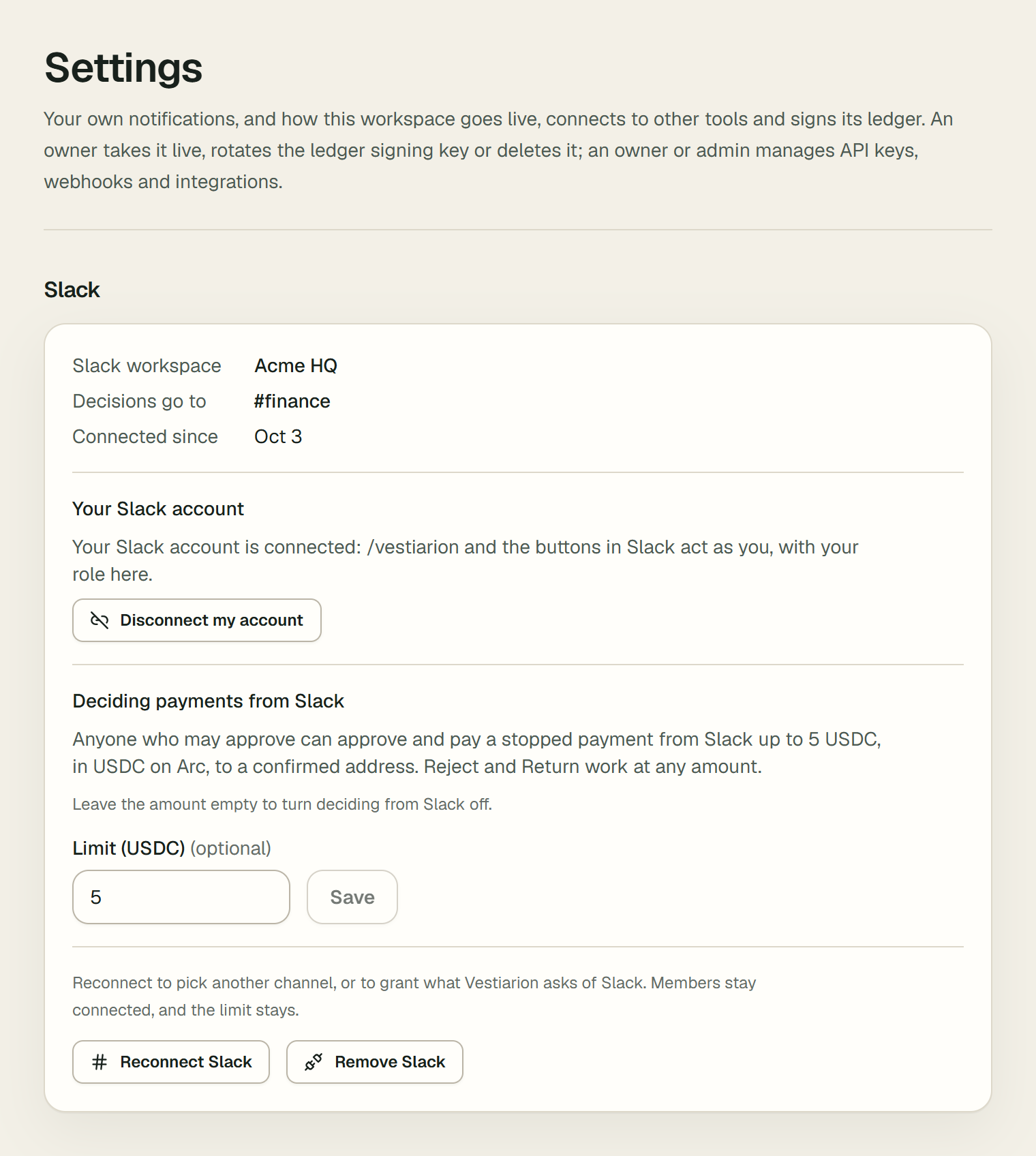
- Choose Add to Slack. Slack opens and asks you to pick the channel the agent's decisions go to. A private channel your finance people are in is a good choice: everyone in it sees the payments.
- Choose Allow. Slack sends you back to Settings, which says "Slack is connected. The agent's decisions now go to the channel you picked."
- The section now names the Slack workspace and the channel. The ledger records
slack_installed, and your own Slack account is connected already.
To pick another channel later, an owner or admin chooses Reconnect Slack in the same section; members stay connected, and the limit stays. One Slack workspace serves one Vestiarion workspace. If Settings says "That Slack workspace is already connected to another Vestiarion workspace.", remove it from that one first. Anyone else sees "An owner or admin connects Slack." instead of the button.
2. Connect your own Slack account
The channel's messages reach everyone in the channel. To ask Vestiarion something, or to press a button on a message, each member connects their own Slack account to their own membership:
- In Slack, type
/vestiarion connect. Only you see the answer: a link that works once, for 10 minutes, and only for you. - Open it. Sign in to Vestiarion if you are not signed in. The page, Connect your Slack account, says which Slack account will act as you, in which workspace, and with which role.
- Choose Connect my Slack account. The page answers "Connected. Back in Slack, try /vestiarion today." and the ledger records
slack_member_connected.
A Slack account acts as you only after you confirm it on that page, signed in. Connect only an account that is yours.
3. What the channel receives
After each cycle, the channel gets one message listing what the agent decided since the last one: what it paid, scheduled, released or received, and what it stopped, each with why, and links.
Acme · the agent decided 2 things

Paid Centronex 0.35 USDC · 26 s after it was added.
DeepSeek decided, as the written policy would. Checks passed: purchase order and goods, the 2.00 USDC limit, screening.
[Arc testnet transaction] [How it decided]

Held Jiren 3.00 USDC for you.
The invoice is above Jiren's 2 USDC payment limit.
[Decide in Approvals]- Arc testnet transaction opens the payment on the explorer.
- Decide in Approvals opens the stopped payable in Vestiarion. While deciding from Slack is off, the default, that is where it is decided.
- The channel is told only about decisions made after Slack was connected. A busy cycle's message ends with how many more decisions are in the console.
4. Ask it
| Type | What you get, seen by you alone |
|---|---|
/vestiarion today | Safe to spend today, what is due in the next 30 days, how many payments wait for a person, and what the agent pays next |
/vestiarion waiting | Each payable or milestone waiting for a person, why the agent stopped it, and where to decide it |
/vestiarion ledger | Whether the signed ledger is intact, checked the way Verify hash chain checks it |
/vestiarion pause [reason] | Stops the agent, for an owner, admin or approver. The channel where you typed it sees that you paused it. Resuming stays in Vestiarion |
/vestiarion disconnect | Disconnects your Slack account |
/vestiarion help | What it does |
Every answer is read from your workspace and written by code.
5. Decide a payment from Slack
Deciding payments from Slack is off until an owner allows it. In the Slack section, under Deciding payments from Slack, an owner fills in Limit (USDC), the most a payment approved from Slack may be, and saves. Leaving it empty turns it off again; while it is off, the section says "Deciding payments from Slack is off" and a stopped payable's message only links to Approvals. Each change is recorded as slack_decisions_limit_changed.
Once it is on, a payable the agent stopped gets buttons under its message:
Held Jiren 3.00 USDC for you.
The invoice is above Jiren's 2 USDC payment limit.
[Approve and pay] [Reject] [Return to the agent] [Decide in Approvals]- Approve and pay, when the payable is in USDC, its payee is paid on Arc testnet, its amount is within the limit, and its payee's address is confirmed. Slack asks you first, in a box titled Approve and pay? that names the amount, the payee and the address, shortened to its first and last four characters.
- Reject, after Slack asks you to confirm it.
- Return to the agent, which hands it back for the agent to decide again, usually within a minute.
The limit is for Approve and pay alone: Reject and Return work at any amount.
When Approve and pay is not offered, the message says why under the buttons, after "Approve it in Vestiarion:", and you decide it in the console.
A button acts as you, with your role in the workspace as it is when you press it, and runs the same checks as Approve and pay in Approvals: you cannot approve a payable you entered unless you are the workspace's only approver, a payee screened high risk is refused, the operating wallet must hold the amount, and a payable is decided once, whoever presses first. Above the workspace's figure for two approvals, its rules apply instead: whoever entered a payable gives one of its two approvals only when no one else can, and the funds are checked by the approval that pays it. Slack adds two of its own: a button works only on the payable as its message showed it, and never confirms a changed address. If the payable was decided, or the agent decided it again, since the message was posted, you are told "This payable changed after this message was posted. Open Vestiarion to see it as it is now." Approve and pay is also refused when the payee's address is no longer the one the message was posted with: a new address is confirmed on Counterparties, in Vestiarion. A button older than 7 days answers "This button no longer works". Someone who has not connected their Slack account is told "Connect your Slack account to Vestiarion first", and nothing is decided.
What you decide is rewritten into the message for the channel: "Approved and paid by" you, with the Arc testnet transaction, or "Rejected by", or "Returned to the agent by". Above the workspace's figure for two approvals, your approval pays nothing yet: the message says you approved it, then "One more approval, by another person, pays it.", and keeps its buttons for a second person, whose approval pays it. A refusal is shown to you alone. In the ledger, the decision is the same approval_paid, approval_rejected or approval_returned entry the console writes, with via: "slack" and the id of your Slack link.
6. Add an invoice from Slack
An owner or admin can add a payable from an invoice in Slack: a PDF, an .eml or .txt file of at most 4 MB attached to a message, or the invoice's text in the message itself.
- On the message, open More actions and choose Add invoice.
- Vestiarion reads it the way From a document on AP / AR reads one, and answers you alone with every field it read, what to check, and The model's note: when there is one.
- Choose Add, goods received or Add, not received yet to add it, or Cancel, which answers "Not added."
The payable is added exactly as one added on AP / AR: the ledger's create_invoice entry names you, and adds via: "slack", the id of your Slack link and the hash of the document. The document itself is not kept. The agent usually decides within a minute, and its decision is posted to the channel like any other. A draft can be added once, within an hour; after that you are told "This draft was already used or has expired."
When the invoice's vendor matches no counterparty in the workspace, or it has no amount or due date, Vestiarion says what is missing and links to AP / AR, where you can add it by hand. An approver or a viewer is told "Only an owner or admin can add invoices."
Vestiarion reads only the message you chose it on, and Slack lets it open a file only in a channel it is in: for a file shared anywhere else, type /invite @Vestiarion in that channel first. If Slack was connected before this was possible, Vestiarion answers that it cannot open files in this Slack yet: an owner or admin chooses Reconnect Slack once, and Slack asks them to allow it.
7. Disconnect
- Your own account: type
/vestiarion disconnectin Slack, or choose Disconnect my account in the Slack section. The ledger recordsslack_member_disconnected. - The whole workspace: an owner or admin chooses Remove Slack. Vestiarion removes the app from the Slack workspace, and every member's Slack link goes with it. Removing the app in Slack does the same. The ledger records
slack_uninstalled. - If someone is removed from the workspace, their Slack link goes with their membership.
What Slack receives
Workspace and counterparty names, amounts, the agent's reasons, links to Vestiarion and to the Arc testnet explorer. A wallet address only shortened to its first and last four characters; never an email, a key or a full address. The app reads no message in your Slack but the one someone chooses Add invoice on: it asks for three permissions, to answer /vestiarion, to post to the channel you picked, and to read a file someone chooses.
For the person who runs the deployment
Create the Slack app from integrations/slack/manifest.yaml (api.slack.com, Create New App, From a manifest), and set SLACK_CLIENT_ID, SLACK_CLIENT_SECRET and SLACK_SIGNING_SECRET. Without all three, the Slack section does not show and the Slack routes answer 404; every request from Slack is checked against the signing secret. Slack checks the events URL when it is saved, so add Event Subscriptions once the deployment serves it. To let other Slack workspaces connect, turn on public distribution under Manage Distribution. An app created before Add invoice existed needs the manifest saved again on its App Manifest page, and each workspace connected again with Reconnect Slack.