Guides
Your first payment
Add a counterparty and an invoice, run a cycle, and follow the payment to the explorer and the ledger.
This page takes a workspace from an empty book to its first payment on Arc testnet: add a counterparty and an invoice, let the agent decide, and follow the payment to the explorer and the signed ledger. Start with a workspace that is live and has testnet USDC in its operating wallet. Go live on Arc testnet sets that up. Until the first payment settles, the console's Get started checklist follows these steps too, and links the next one.
Who does what:
- Owners and admins add counterparties and invoices, and run cycles.
- Owners, admins and approvers decide the payments the agent holds.
- Viewers see everything, but have no controls.
Try it with sample data first
To see the agent at work before you set anything up, open the console of a new workspace. While the workspace has no counterparties and has not connected Circle, the console shows Try it with sample data. Choose Load sample data: it adds six example counterparties, marked Sample on the Counterparties page, with invoices and milestones chosen so that one cycle shows every outcome. The agent usually runs that cycle within a minute on its own; then read the decisions on the console and on Approvals:
- a hosting invoice with a purchase order and goods received is paid;
- an annual support plan with a 2% early-payment discount is scheduled for its discount deadline;
- an overage with no purchase order waits for information;
- an invoice over the counterparty's payment limit is held for a person;
- a print run billed again under a purchase order that was already paid is flagged;
- a verified contractor milestone is released, and an unverified one waits.
Sample payments are simulated. While Sample data is loaded, the console offers Remove sample data: it removes the sample counterparties and everything recorded against them, and the ledger keeps its entries. Remove the sample before you connect Circle; until then, connecting answers "Remove the sample data first. It exists only to try the agent with simulated payments."
1. Add a counterparty with an Arc address
A counterparty is a business or person the workspace pays or invoices. Open Counterparties, open Add counterparty, and fill in the form:
- Legal or trading name.
- Role: Vendor or Contractor for someone you pay.
- Payment limit (USDC): the most the agent may pay this counterparty in one payment. Screening can lower it: the card shows the limit you set and the current one.
- Chain: Arc testnet for a payee paid on Arc. For a payee who wants USDC on another chain, choose Base Sepolia, Arbitrum Sepolia or Ethereum Sepolia: see Pay a payee on another chain.
- Payment address: the counterparty's address on the chain you chose,
0xfollowed by 40 hexadecimal characters. An address that mixes capital and small letters must match its checksum, or the form says "This address's capital letters do not match its checksum, so a character is likely wrong." A payment to a mistyped address reaches no one, so copy it again from where it came. An address in one case alone is taken as written. - Jurisdiction: an ISO code or a country name.
- Billing email, optional: a payee is told there each time it is paid (see Tell the payee it was paid), and a client gets the reminders you turn on (see Let the agent remind the client).
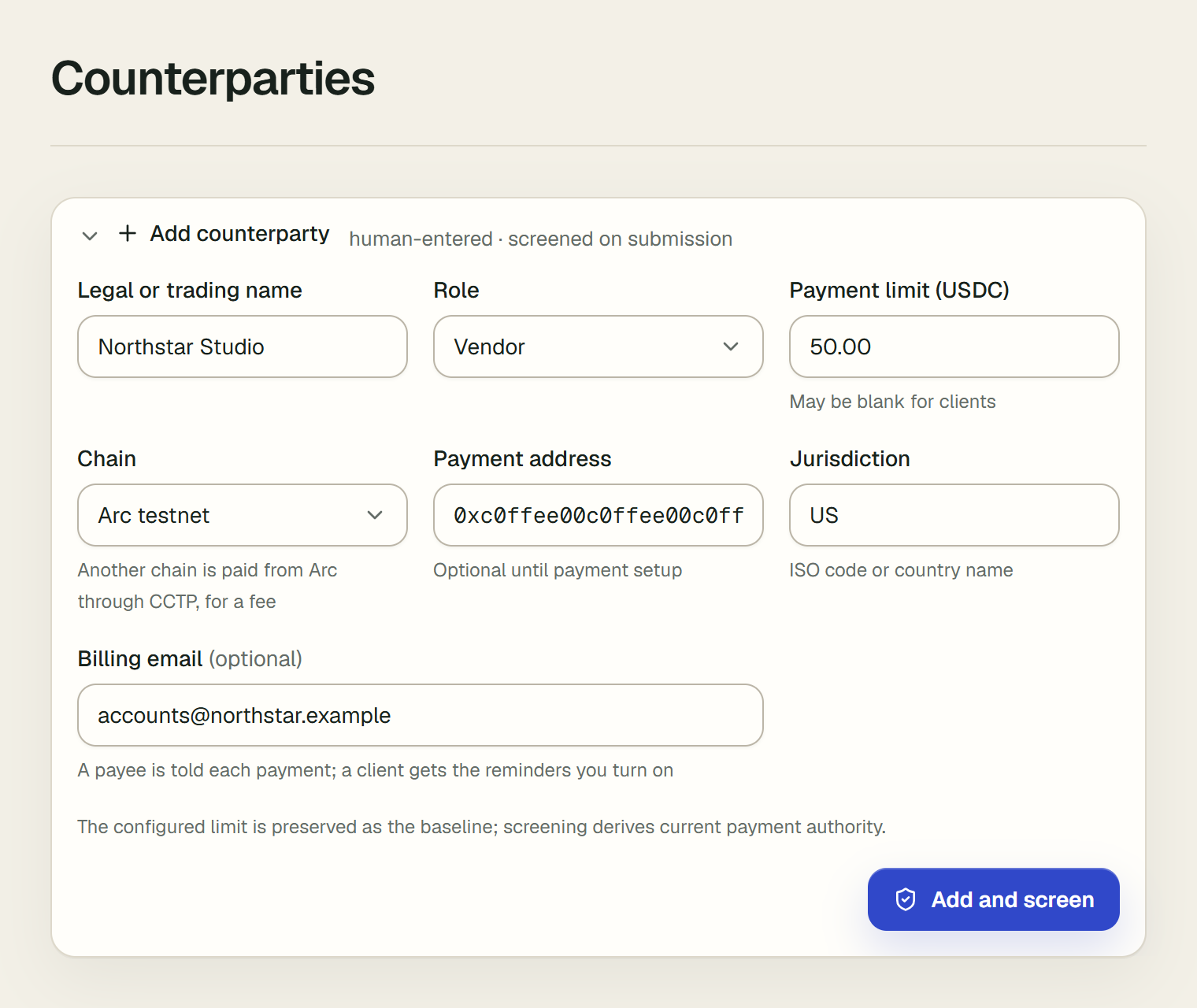
Then choose Add and screen. The counterparty is screened as soon as it is saved, and a message gives the result: "Name added and screened: level risk." The agent never pays a counterparty screened high risk. A live workspace screens against OpenSanctions; a sandbox, whose payments are simulated, screens against a short list built into the app.
If screening cannot run, for example because the screening service does not answer, the counterparty is still saved, and the message says it "was added, but screening is incomplete". Its row then reads Not screened yet, and the agent pays it nothing: a payable to it is held with the rule counterparty.unscreened, and so is a contractor's milestone. Screening runs again at every cycle. Once it gives a verdict, the agent decides what it held again, within a minute. A person can still pay it from Approvals.
Under Counterparty book, each counterparty is one row: its role and chain, its risk, what it may be paid now (Allowed now), its address, and what it needs before the agent can pay it. The rows that need someone come first: Review match, Confirm address, Address needed and Not screened yet, then Ready to pay. Open a row for its screening, limits, history and address.
If screening matched someone else with the same name, the counterparty's row reads Review match; open it to see the match under Screening match, with what that does to its limit. A member who can approve payments can choose Not this person, say why, and confirm with Dismiss the match. The counterparty is screened again at once without that match (a match with anyone else still counts), the ledger records screening_match_dismissed with the reason, and payments held on the old risk are decided again within a minute. A name can match several people: the box then says how many others it matched, and Not this person lists every one, with its score, so one review dismisses them all under one reason (each is recorded, and a match not listed still counts). A match recorded before October 2, 2026 reads "This match was recorded before Vestiarion kept every possible match." Choose Screen again first, and Not this person appears.
Without an address, a payment is held
The form marks Payment address "Optional until payment setup", but the agent can pay only a counterparty that has one. As the Go live page puts it, "A payment to a counterparty without one is held for review." You can add it later with Edit address on the counterparty's card.
Changing a payment limit
Owners and admins open the counterparty's row and change its limit with Edit limit, under Configured limit. Enter the new Payment limit (USDC) and choose Save limit. Allowed now follows at once: the whole limit for a counterparty screened clear, a quarter of it for medium risk, and 0 for high risk. A vendor or contractor always has a limit, because without one the agent could pay any amount. The ledger records who changed the limit, and from what to what.
Pay a counterparty without purchase orders
The agent pays an invoice on its own only when its three-way match is complete: the goods or services received and a purchase order on file. Some suppliers never issue one, such as a utility or a subscription. A vendor's or contractor's row on Counterparties shows Purchase orders: "Needed before the agent pays", as for every counterparty at first, or "Not needed · goods received still is". Owners and admins choose Change beside it, then Pay without purchase orders or Require purchase orders.
- Paid without purchase orders. The agent pays the counterparty's invoices with no purchase order on file. The goods or services still have to be marked received, and every other check stays. Its invoices that waited only for a purchase order are decided again within a minute.
- Needing them again. The agent asks for a purchase order before it pays or schedules any of its invoices. A payment already scheduled without one waits for the details on its day.
- Enforced in code. The model is told whether the counterparty needs purchase orders, and the written policy asks for information on the same condition. If the model chooses to pay or schedule an invoice whose match is incomplete anyway, code refuses it, and the invoice waits for the details as if the agent had asked.
- Recorded. The ledger records who changed it, as
counterparty_purchase_orders_changed.
Ask a payee for their address
You don't have to collect a payee's address yourself. In the counterparty's row, owners and admins choose Ask for address, then Create link:
- The link is shown once, with Copy link. Send it to the payee however you usually reach them.
- The payee opens it without an account. They see which business wants to pay them and enter their own Arc address.
- The link works once and expires after 7 days. A new link replaces the payee's unused one, and Revoke in the row stops it.
- An address that comes in through a link counts as a change, like any other: the row says "not yet confirmed", and the agent holds payments to that payee until someone here confirms it, as below.
Changing an address
Owners and admins change a counterparty's address with Edit address in its row: enter the new Arc address, or leave it empty to clear it, and choose Save address.
Changing where a counterparty is paid is how payments get redirected to the wrong wallet. So after a change, the row reads Confirm address and says "not yet confirmed", and the agent holds every payment to that counterparty, whatever the amount, until a person confirms the new address. There are two ways to confirm it:
- Approve and pay on a held payment to it. The approval card shows where the money goes, after "Pays to". If the address changed after the page loaded, the approval is refused with "This counterparty's address changed after this page loaded. Check the new address and try again."
- Confirm address in the counterparty's row. Owners, admins and approvers see it. A payment the agent held for the change goes back to it, and it decides that payment again, with every check, in the cycle the confirmation starts.
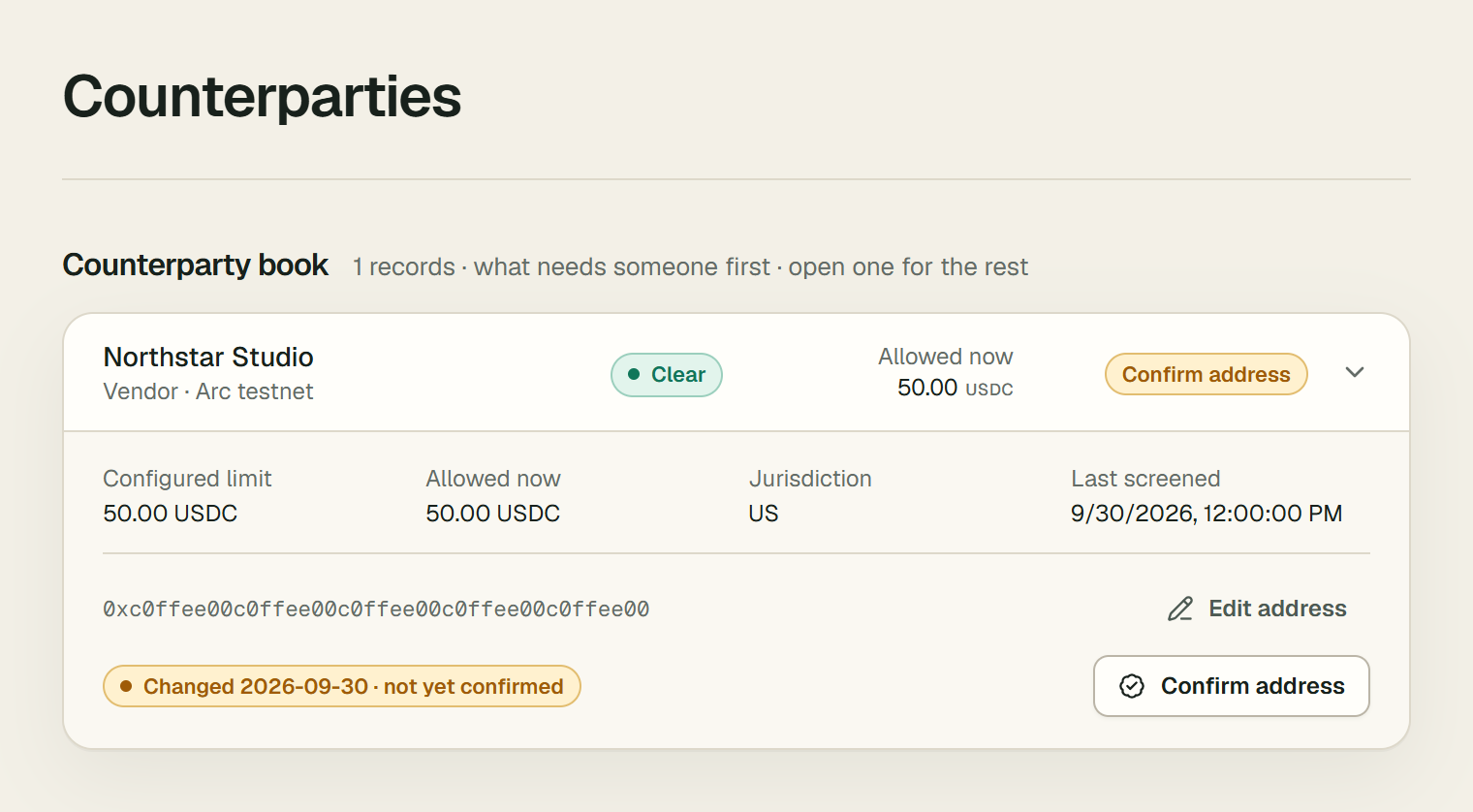
Before you confirm an address, check it with the counterparty through a different channel from the one the change came through. The ledger records who changed the address, from what to what, and who confirmed it. A contractor's verified milestone waits the same way: it stays verified, and the first cycle after someone confirms the address decides it.
Anyone who may not add records sees "Only an owner or admin of this workspace can add counterparties." instead of the form.
2. Add an invoice
Open AP / AR and open New invoice. Choose Enter one invoice, From a document to have the model read it from a PDF or an email (see Read an invoice from a document), or Import CSV to add several from a file.
- Direction: Payable, for an invoice you pay. Choosing a counterparty sets it: Receivable for a client, which pays you, and Payable for anyone else; the line under it says which it is. A payable to a client is never paid by the agent: it waits for a person, who pays it in Approvals if it is a refund.
- Counterparty: the one you just added.
- Amount: within the counterparty's payment limit. The agent does not pay an invoice over the limit; it holds it for you.
- Currency: USDC, or EURC for a vendor that bills in euros. See Invoices in EURC.
- Due date.
- Early-payment discount (%) and Discount deadline, if the vendor offers one. See When the agent pays.
- Memo, if you like.
- PO reference, and tick Goods or services received. Without confirmed receipt, or without a purchase order from a counterparty that needs one, the three-way match is incomplete, and the agent asks for more information instead of paying. Every counterparty needs a purchase order until it is marked as paid without them: see Pay a counterparty without purchase orders.
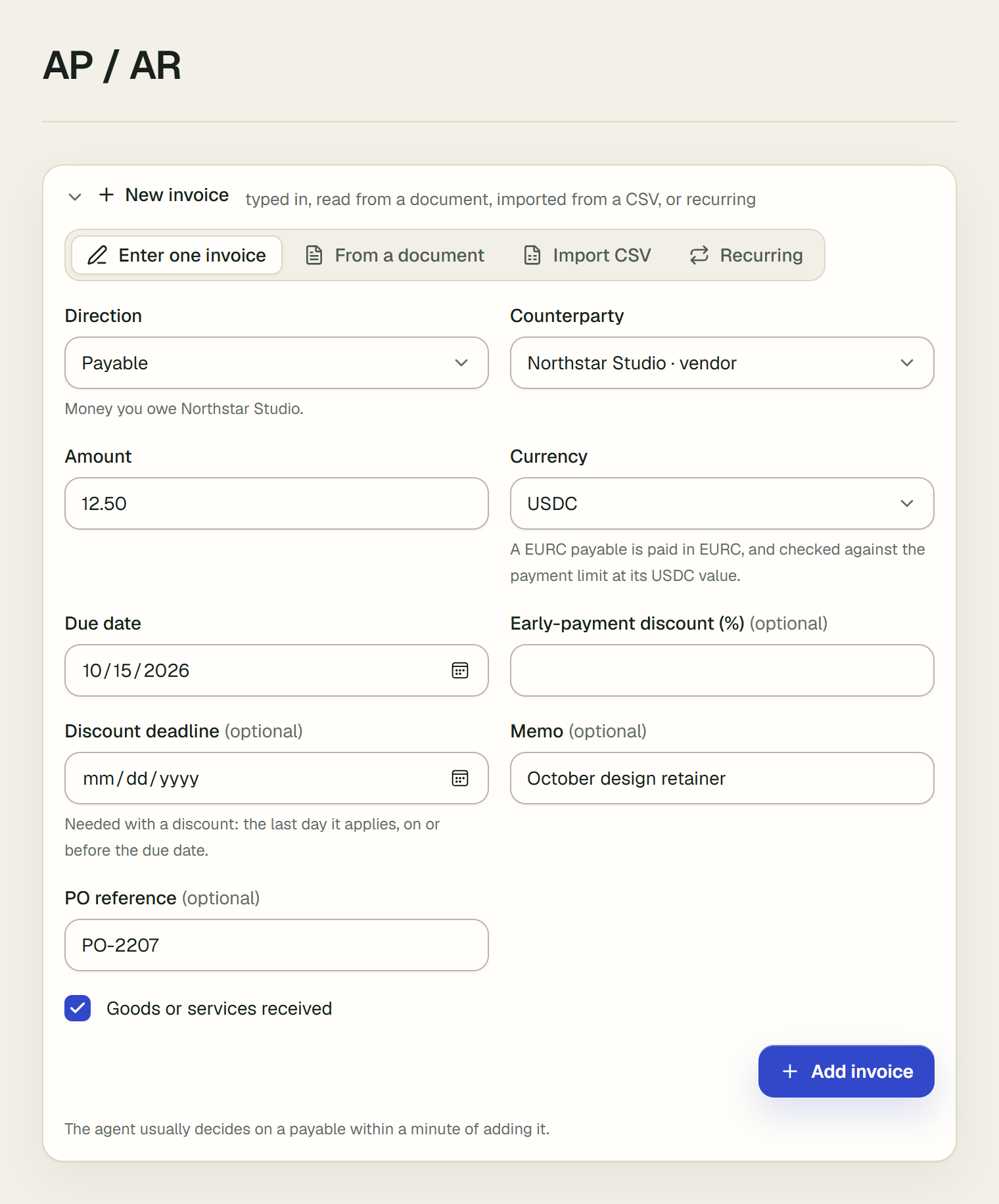
Choose Add invoice. The page confirms with "Invoice added for Name. The agent usually decides on it within a minute." As the form says, "The agent usually decides on a payable within a minute of adding it."
Read an invoice from a document
Instead of typing an invoice in, choose From a document. Choose a PDF or an email, or paste the invoice's text under Or paste the invoice's text, then choose Read invoice. The workspace's model reads the vendor, the amount, the currency, the due date, the purchase order, any early-payment discount and the address the invoice asks to be paid to. It fills in the invoice form below with them. Nothing is added until you check the form and choose Add invoice.
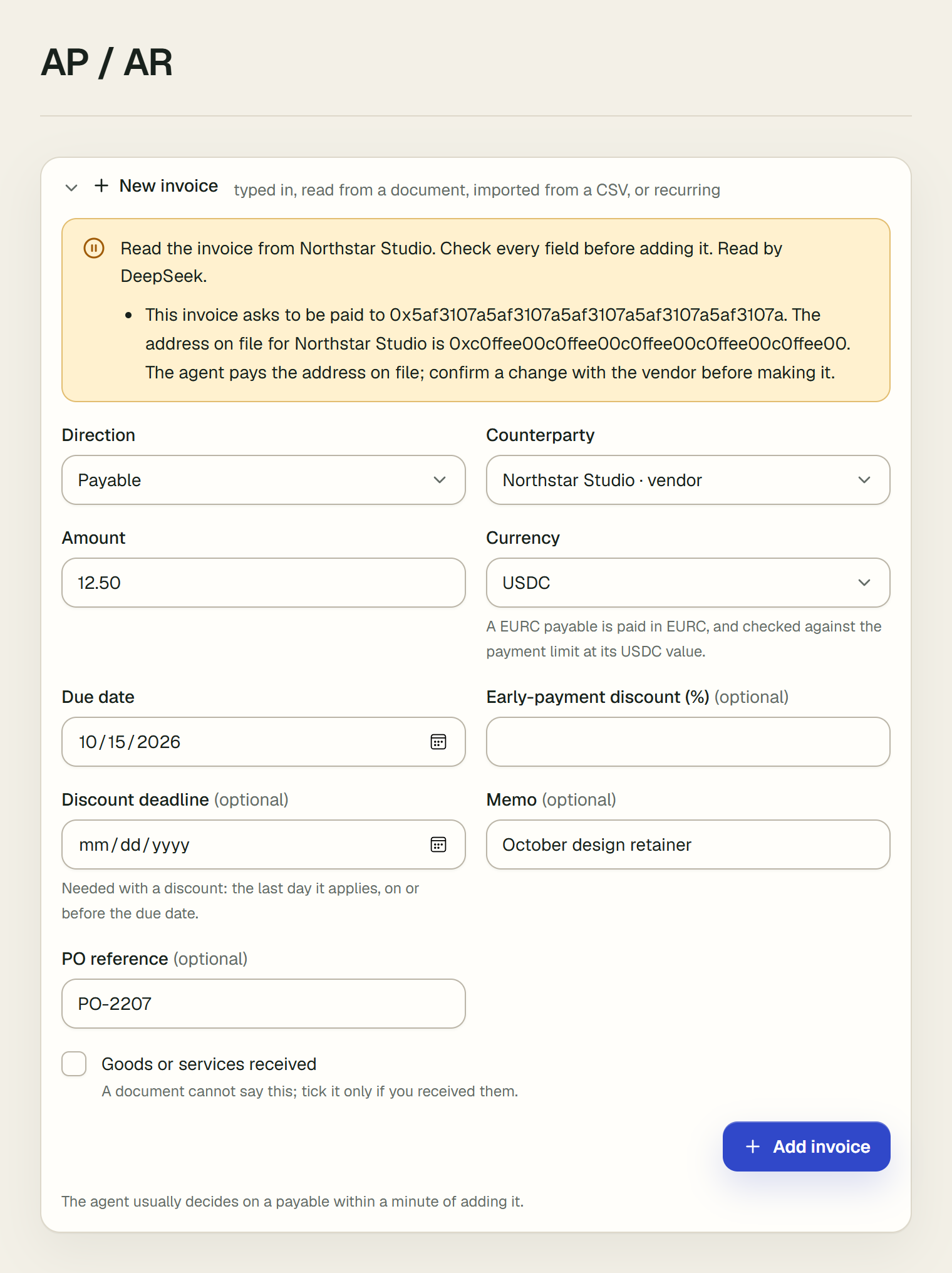
What the model read is checked before you see it:
- An amount, purchase order or address that the document does not contain is left blank: "The amount the model gave is not in the document, so it was left blank."
- An amount written with a decimal comma, as much of Europe and Vietnam write money, is read as such: 3,50 is 3.50 and 1.200,00 is 1200.00. A comma before three digits is a thousands separator, so 1,250 is 1250.
- A due date read from a date written in numbers whose day and month could swap gets a note naming both days, the one taken first: "The due date, 3 November 2026, was read from 03/11/2026, which can also mean 11 March 2026. Check it against the invoice."
- When you type over the amount that was read, the form names what was read: "The invoice was read as 12.50: check this amount before you add it."
- The counterparty is matched by its address on file, or else by its name. When none matches, the form says so: add it on Counterparties first, or choose one.
- When the invoice asks to be paid to another address than the one on file, the form warns you. The agent pays the address on file; a document never changes it.
- Goods or services received is never ticked for you: "A document cannot say this; tick it only if you received them."
- An early-payment discount whose percent the document states is filled in even when its deadline cannot be used, and the form then asks you for the deadline: "The discount deadline was left blank: the invoice does not give one that could be read. Enter the last day the discount applies, or clear the discount."
A PDF is read from its text, and an email (an .eml file) from its own text and the PDFs attached to it. A scanned PDF has no text: "This PDF has no text to read; it may be a scan. Paste the invoice's text instead." A file can be up to 4 MB, and a workspace can read five a minute. The document itself is not kept. The invoice's ledger entry records the document's SHA-256 hash, which model read it, and which fields you changed.
Invoices in EURC
A vendor that bills in euros can be paid in EURC, Circle's euro stablecoin, on Arc testnet. Choose EURC under Currency on the invoice form, or put EURC in a CSV row's currency column. As the form says, "A EURC payable is paid in EURC, and checked against the payment limit at its USDC value."
- The rate. Payment limits stay in USDC. Before it decides a EURC payable, the agent asks Circle's Stablecoin Service what the amount is worth in USDC on Arc testnet, and checks that value against the limit. The decision's ledger entry records the rate and when it was quoted. It is the testnet market's rate, not a reference exchange rate.
- No rate, no payment. When the quote does not answer, the payable is held for a person, and its card shows USDC value "no rate". If the model had decided to pay it anyway, the card's "Blocked by code, not by the model" band names the rule,
fx.rate_unavailable. You can still approve it on Approvals. - Decided again when the rate comes back. Arc testnet's route comes and goes. Every 5 minutes, Vestiarion asks Circle again for each EURC payable held for want of a rate, of a swap, of a swap within its cost cap, or of a value within the limit. Once a quote clears what held it, the agent takes it up again within a minute and decides it with every check, with no one pressing anything.
- On the payable. Under How the agent decided, the reopen step names what came back, for example "A EURC rate is quoted again: 0.5 EURC is worth 0.607631 USDC at 1.215262 USDC per EURC, where there was none at the decision".
- In the activity line. For example "Paid Loto 0.50 EURC · decided again once a EURC rate was quoted".
- In the ledger. The reopen and the decision after it record the rate before and after, and the decision they follow.
- Not a loop. A route that comes and goes reopens a payable at most once in 30 minutes. Return to agent on Approvals still works at any time.
- Paid from EURC. A EURC payable is paid in EURC from the operating wallet; USDC is never sent in its place.
- When the wallet's EURC is short: the agent can buy the EURC with USDC first (next point). Otherwise the payable is held. If the model had decided to pay it anyway, the band names the rule,
treasury.insufficient_eurc. - Testnet EURC: get it at faucet.circle.com for the operating wallet's address, the same way as USDC.
- How much EURC the wallet holds: the Balance on-chain tile on Console shows it under the USDC, read from Arc testnet each time the tile refreshes.
- When the wallet's EURC is short: the agent can buy the EURC with USDC first (next point). Otherwise the payable is held. If the model had decided to pay it anyway, the band names the rule,
- Paid from USDC by a swap. In a live workspace, when a EURC payment is due now and the wallet's EURC is short of it, the agent is offered a swap of USDC for the EURC it needs.
- Where. The swap goes through Circle's Stablecoin Service, the swap service behind App Kit, on Arc testnet.
- How much. It is sized so that its minimum covers what is missing. EURC above that stays in the wallet.
- Who decides. The model decides whether to pay with it, weighing what it costs.
- What code refuses. A swap that costs more than 3% above the quoted rate (
fx.swap_cost_above_cap), or that would leave the USDC below what falls due in USDC within 7 days (fx.swap_usdc_short). - How it runs. From the operating wallet, before the EURC transfer. It is recorded as its own
fx_swapledger entry, with its rate and its transaction on Arc testnet. The card shows Funded by swap, linked to that transaction. - When it runs. A payable not due yet is scheduled, and the swap is made on its day. A swap still in flight at Circle is finished by the next cycle before the payable is decided again. A sandbox never swaps.
- Repeats. A EURC bill sent again in EURC is refused like any repeat. A purchase order billed once in USDC and again in EURC is shown to the agent as a re-bill to confirm.
- Totals stay USDC. Paid out to date, the treasury buffer and the forecast count USDC only.
Pay a payee on another chain
A vendor who wants USDC on Base, Arbitrum or Ethereum Sepolia is still paid from the operating wallet on Arc testnet. As the form says, "Another chain is paid from Arc through CCTP, for a fee." Choose the vendor's chain under Chain, and give their address on that chain under Payment address. Only a vendor can be paid on another chain: a contractor's milestones are released on Arc testnet. A payee link sent to such a vendor asks for their address on that chain.
- How it is paid. The agent burns the USDC on Arc through Circle's Cross-Chain Transfer Protocol (CCTP), and Circle's Forwarding Service mints it to the payee on their chain. The payee is minted the invoice amount, and the fee comes on top of it, from the operating wallet.
- The fee. Before it decides, the agent asks Circle what the transfer costs, and weighs it. The fee depends on the chain: on 2026-10-01 it was about 0.05 USDC to Base Sepolia, 0.13 to Arbitrum Sepolia and 1.85 to Ethereum Sepolia. A payout whose fee is above 10% of the invoice is held for a person, and so is one Circle gave no fee for.
- From a Gateway balance. A live workspace can also hold a balance in Circle Gateway, which pays out on another chain at once.
- On Treasury, an owner or admin opens Manage under Gateway balance, enters an amount in Amount to move from the operating wallet (USDC), and chooses Fund Gateway. The first funding creates the workspace's Gateway signer, a Circle wallet that signs Gateway's transfers; Circle holds its key. USDC moved into Gateway stays there until it is paid out.
- For each payout to another chain, the agent asks both Gateway and CCTP what it costs. It pays from the Gateway balance when that balance covers the payout and Gateway's fee is no higher than CCTP's; otherwise it pays through CCTP.
- The card names the route the payout took, under Payee's chain, with its fee against the other route's, and links the mint on the payee's chain. Once a payout has started on a route, every later attempt uses that route.
- USDC only. An invoice in EURC to a payee on another chain is held: only USDC crosses chains.
- In flight, then paid. The invoice reads "Payment in flight" from the burn on Arc until the mint lands, usually within half a minute. Its card then reads "Settled on chain", naming the chain the money landed on, such as "Settled on Base Sepolia", and links both: the burn on arcscan, and the mint on the payee's chain. A payment still not minted two hours after it was sent is held for a person.
- Approving one. On Approvals, the card names the payee's chain. Approve and pay takes the route the agent would: Gateway when the Gateway balance covers the payout and Gateway costs no more, CCTP otherwise. A payout an earlier attempt started keeps its route. The confirmation names the route and its fee, for example "The Gateway fee, about 0.163 USDC, comes on top, from the Gateway balance." A CCTP payout needs the operating wallet to hold the amount and the fee; a Gateway payout needs the Gateway balance to.
3. Run a cycle
A cycle is one run of the agent: it screens counterparties, reads open invoices, and pays, schedules, holds or flags each one. Adding a payable starts a cycle, usually within a minute, so the invoice is decided without anyone pressing a button, and the pages show the decision on their own. The agent also starts one when a person returns a payable to it, confirms a changed address, verifies a milestone, or resumes it. One cycle runs at a time: if one is already running, the next waits for it, and Run cycle now says so instead of starting a second. A live workspace also runs a cycle every 6 hours on its own, for what time alone changes, such as due dates and screening.
To run one yourself, open Treasury, the console, and choose Run cycle now. Only owners and admins have this button. When the cycle ends, a message says "Cycle complete at time · n decisions logged." and the console shows a report of what the cycle did.
Watch the agent work
The line at the top of every workspace page says when the last cycle ran. While a cycle runs, it reads "The agent is working · n s" instead, counting the seconds, and on AP / AR each payable not yet decided reads Deciding now.
When the agent has decided, a message says what it did, one per decision, how long after your action, who decided and what was checked. For example:
- "Paid Jiren 0.30 USDC · 28 s after details were added.", then "DeepSeek decided, as the written policy would. Checks passed: purchase order and goods, the 30.00 USDC limit, screening, the spending-limit contract." Under it, How it decided opens the payable's steps on AP / AR, and View on Arcscan its transaction.
- "Code stopped paying Centronex 0.35 USDC · 19 s after it was added.", then "DeepSeek decided to pay it; code stopped it: the agent's spending limit has no room today, and the agent pays it once there is." Under it, Decide in Approvals.
When a cycle decides more than two things, one message says "The agent made n decisions." and See them opens the console's report of that cycle. Either way the page shows what changed at once, without a reload.
A page tells what happens while it is open: a cycle started by your own action, by another member's, or by the 6-hourly schedule. It watches closely for a minute and a half after you add or change something, and less often otherwise.
4. Read the decision and its reasoning
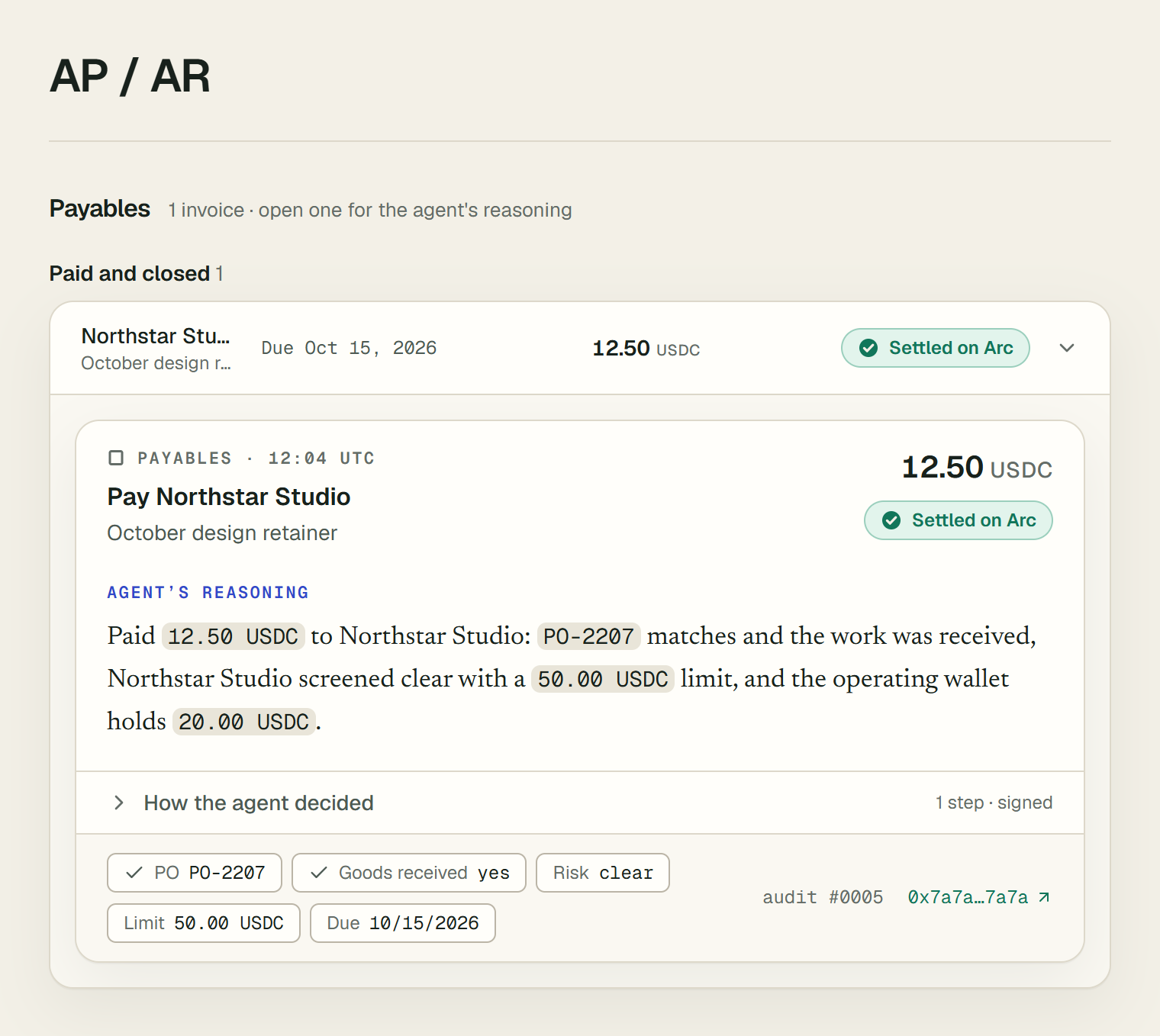
On AP / AR, the tiles at the top count what needs you, what is due within 7 days, what is overdue, and what is still to pay. Under Payables, each invoice is one row, in three groups: Needs you (held, or refused by code), Upcoming (not yet paid, with the day it pays or falls due) and Paid and closed (the latest ten; Show all lists every one). Open a row to see its decision as a card. The console's Stopped section also shows the latest decisions the agent stopped. A card shows:
- the outcome: "Settled on Arc", "Scheduled for date", "Held for you" or "Refused by guardrail";
- the amount and the counterparty;
- Agent’s reasoning: why it decided as it did, citing the facts it used, such as the amount, the PO reference, the risk level and the balance;
- the evidence it checked, the ledger entry (
audit #and its number), and, for a payment, the transaction hash.
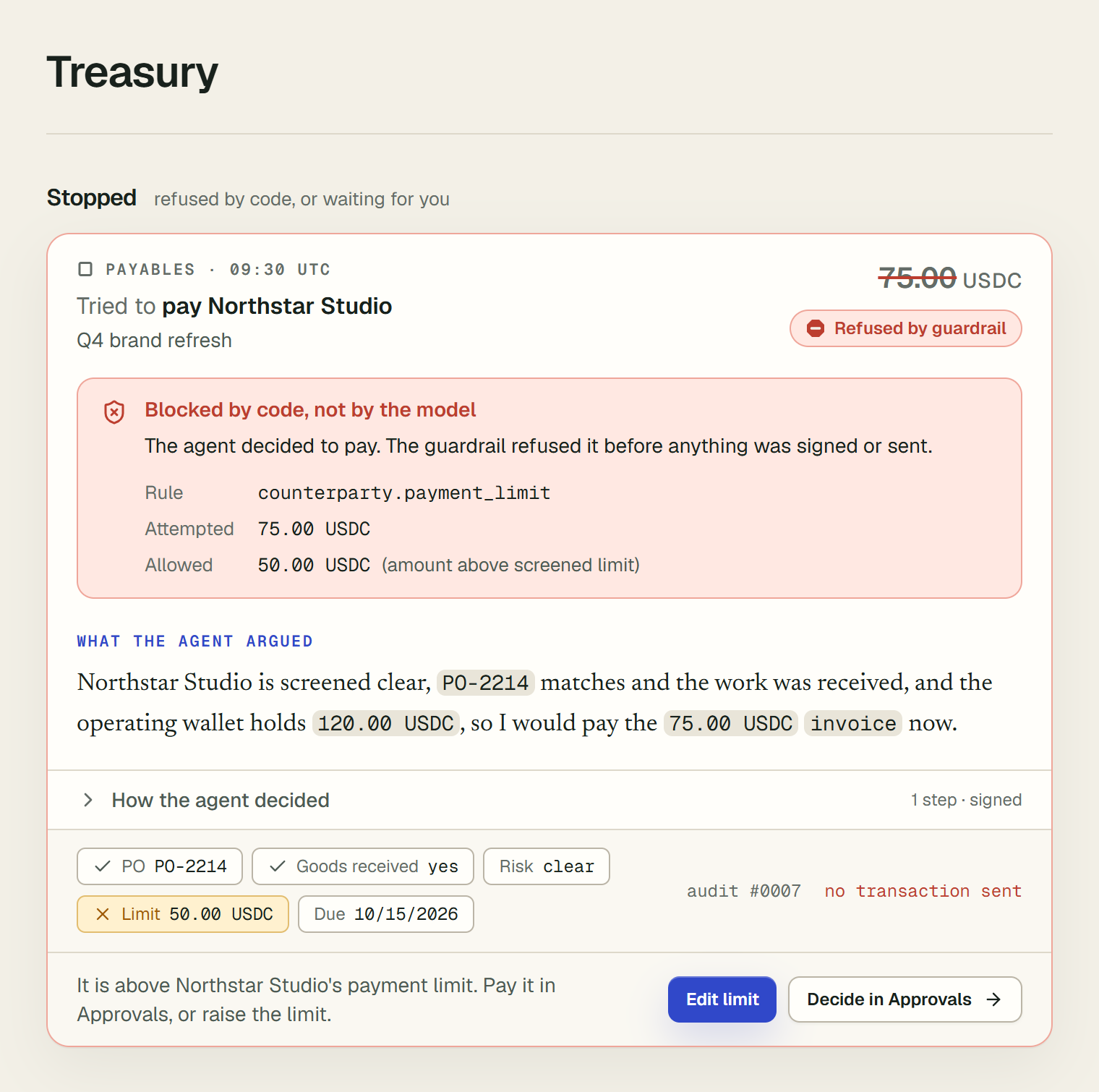
When the model decided to pay but a guardrail stopped it, the card also has a "Blocked by code, not by the model" band. The band names the rule, the amount attempted and the amount allowed.
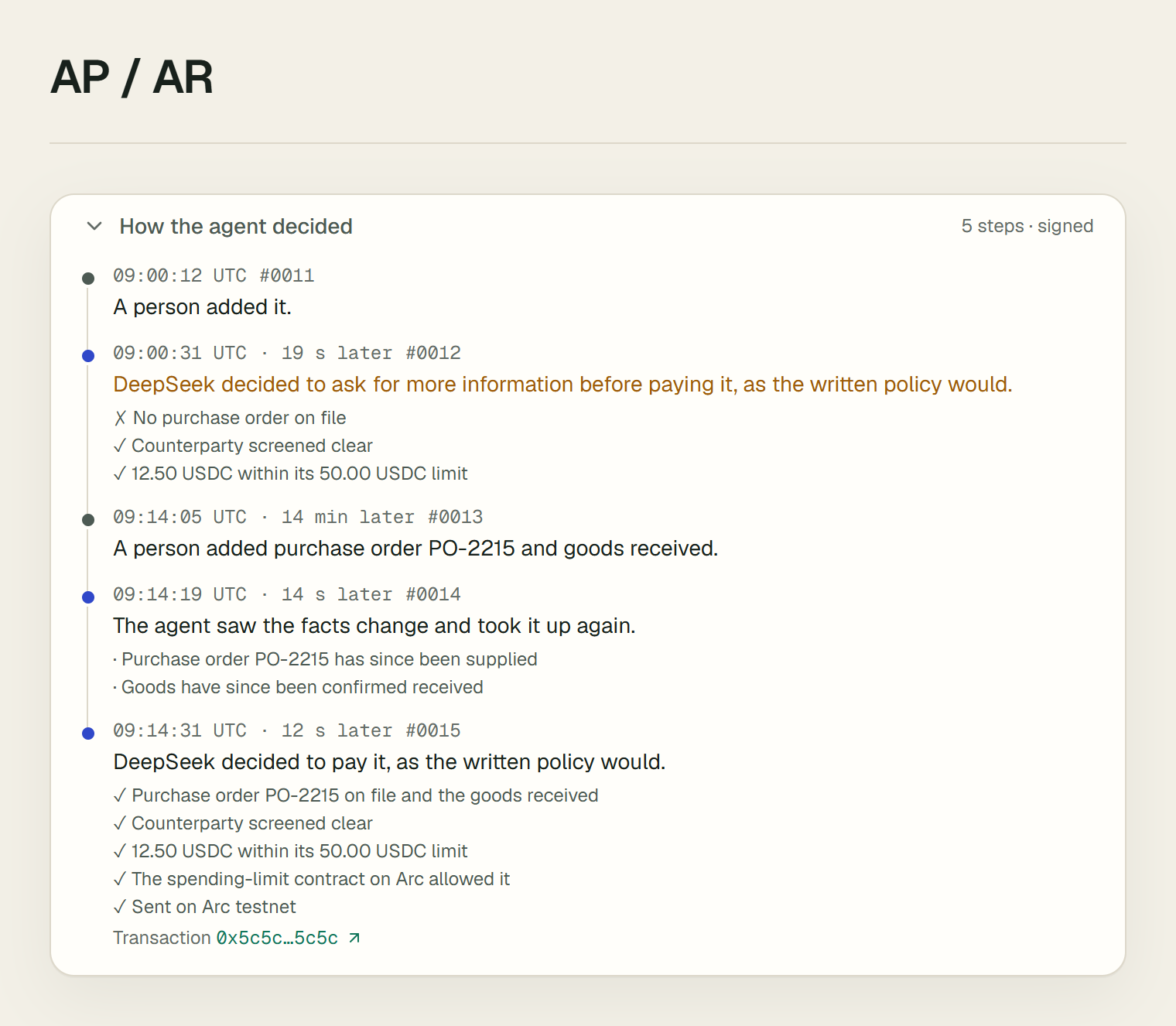
At the foot of a payable's card, How the agent decided opens its steps, oldest first, each a signed entry in the ledger: who added it, what a person changed, each decision with who decided and whether the written policy agreed, what it checked (the purchase order and goods, screening, the amount against the limit, duplicates), what code refused, what the spending-limit contract on Arc said, and the transaction that reached Arc testnet. Each step shows its time to the second, how long after the step before it, and the number of its entry in the audit log.
A payable the agent stopped also says what you can do about it, on the console's Stopped section as on AP / AR. Under the card, a line names the cause and the way through, for example "It is above CME's payment limit. Pay it in Approvals, or raise the limit." Decide in Approvals opens Approvals at that payable's card. Owners and admins also get the page that removes the cause:
- Edit limit or Confirm address opens the counterparty's row on Counterparties, already open;
- Purchase orders opens the counterparty's row too, when code refused a payable for a missing purchase order, for a counterparty that is in fact paid without them;
- Review screening opens the counterparty's row, for a counterparty screened high risk, where a wrong match is marked Not this person;
- Spending limit opens the agent's spending limit on Treasury, when it had no room for the payment;
- USYC reserve opens the reserve in Settings, when the operating wallet did not hold the cash a payment needs and the reserve could not cover it: bring cash back there, or add USDC to the operating wallet, and the agent decides the payment again on its own;
- Treasury, when the operating wallet is short of EURC or the Gateway balance of a payout.
A stop only a decision resolves, such as a payout fee above 10% of the invoice or a possible duplicate, says so and offers Decide in Approvals. A payable to a client is one: the agent never pays a client on its own, so the card says to pay it in Approvals if it is a refund, or to reject it and add it as a receivable. A payable missing its purchase order or goods receipt offers Add details (see "Add what the agent was missing" below).
5. When the agent pays
An invoice does not have to be paid the moment it is decided. At intake, a payable can carry an early-payment discount: Early-payment discount (%) and Discount deadline, alongside its other fields. On a cycle, the agent chooses not only whether to pay an invoice but when, within a bound code enforces: never later than the invoice's due date.
A discount needs its deadline. Once you enter a percent, Discount deadline is no longer optional. As the form says, "Needed with a discount: the last day it applies, on or before the due date." An invoice with a percent and no deadline is not added, and the form says under the field: "Enter the last day the discount applies, on or before the due date, or clear the discount." A CSV row's early_pay_discount_pct and discount_deadline columns follow the same rule: both, or neither.
- With an early-payment discount still available, it schedules the payment for the discount's last day, and pays the discounted amount then.
- Otherwise, it schedules the payment for the due date, holding the cash until it is owed.
- A payable due today, or overdue, is paid at once rather than scheduled.
- Before it decides, the agent brings back from the reserve what today's payments need beyond the operating balance: the payables due today, and the verified milestones waiting to be paid.
- If the cash still cannot cover a payable after the payables that fall due on or before its day, the agent holds it rather than scheduling or paying it. It decides the payable again at the first cycle after cash comes in.
A scheduled invoice's decision card reads "Scheduled for date", with the agent's reasoning for choosing that day. On the day itself, the next cycle checks everything again before anything moves: the counterparty's risk level, its payment limit, whether its address is confirmed, and whether the agent is paused. Pausing the agent stops a scheduled payment exactly as it stops any other.
An invoice with an early-payment discount shows its terms on its card as "pct% off if paid by date". Until the agent has decided a payable, its card reads "Not yet decided", and while its transfer is in flight, "Payment in flight". The console's Scheduled payments section lists what the agent will pay next, soonest first: the date, the counterparty, the amount it will actually transfer — discounted, when the discount will still apply that day — and why.
Pay something every period
A retainer, a subscription or a monthly fee does not need a new invoice each time. Under New invoice, open Recurring and fill in the form:
- Pay: a vendor or contractor.
- For: what it is for.
- Amount each period, in USDC or EURC.
- How often: Every 1 or more days, weeks or months.
- First due date, and a Last due date if it ends (optional).
- A Contract or PO reference if you have one.
Above the button, the form reads the schedule back as you fill it in, for example "Pays Jiren 0.3 USDC every day, from Oct 2, 2026 to Oct 3, 2026: 2 payments.". Check the period and the number of payments there before you go on. Choose Set up recurring payment. The setup is signed in the audit log as recurring_payable_created.
- Each period becomes an invoice as it comes near. At most a week before its due date, a cycle creates it: a daily one on its day, a weekly one 6 days ahead, a monthly one 7 days ahead. The agent then decides it like any other: when to pay, within every guardrail. Each one is signed as
recurring_invoice_createdand appears under Payables, named after the period. - Months are counted from the first due date. A payment due on the 31st falls on the last day of a shorter month and goes back to the 31st after.
- Periods of one schedule are never taken for duplicates of each other. The same retainer billed every week is not refused as a repeat bill. An invoice typed by hand that repeats one of them still is.
- Delivered every period is ticked by default: you confirm the work or service continues, so each period's invoice counts as received. Untick it to confirm each period yourself.
- Stopping. The Recurring payments list shows each schedule's next due date and status. Stop ends it, signed as
recurring_payable_stopped; invoices it already created stay as they are.
Cap what the agent pays on its own
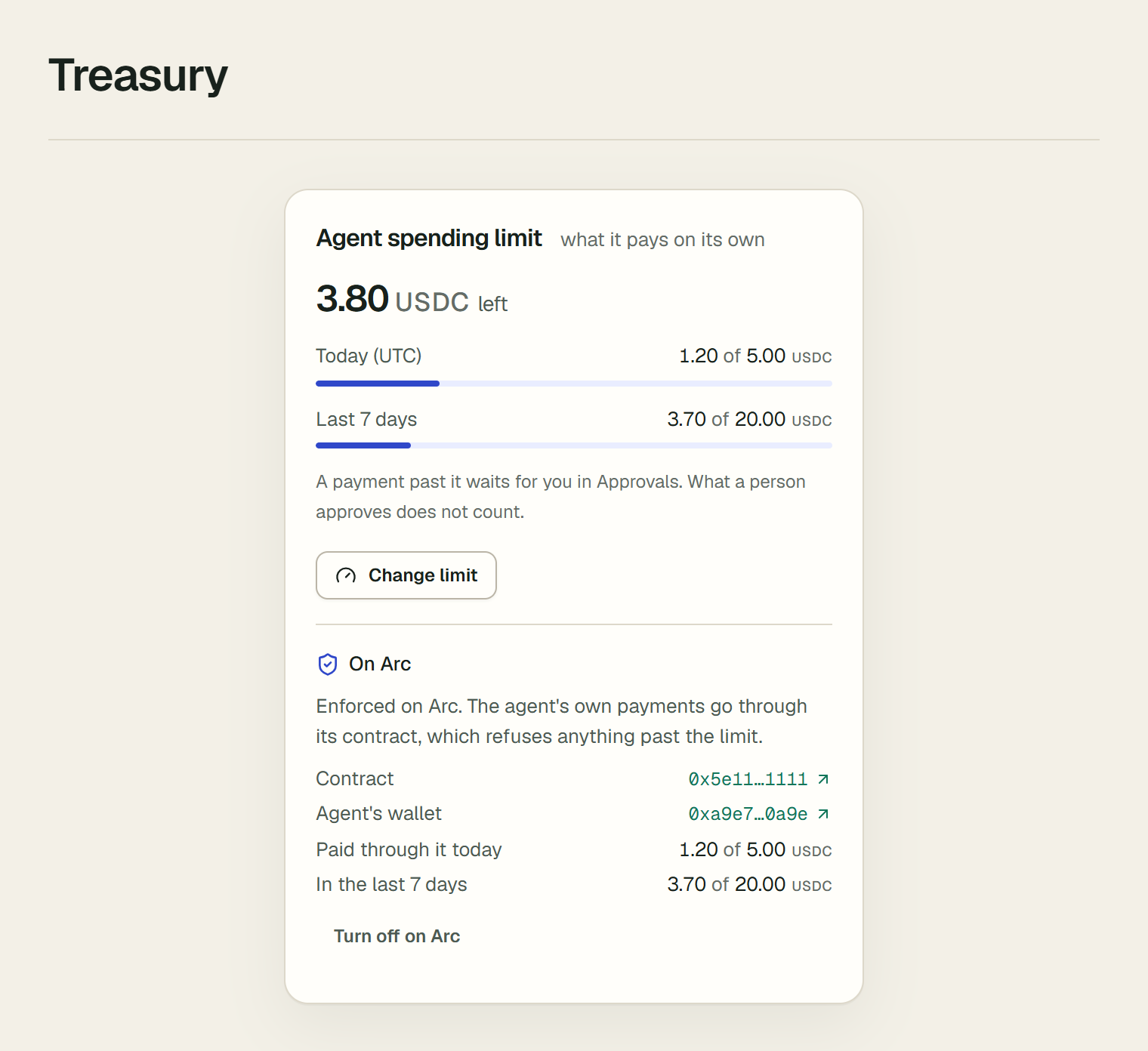
The console's Agent spending limit panel shows what the agent has paid on its own today (UTC) and in the last 7 days. To cap it, an owner or admin chooses Set limit and fills in Per day (USDC), Per 7 days (USDC), or both, then Save limit. A blank figure means no limit. Each change is recorded in the audit log as agent_budget_changed.
- Past the limit, a payment waits. A payment or milestone release that would take the agent past either figure is held before anything is sent. Its card's "Blocked by code, not by the model" band names the rule,
workspace.outflow_budget, with the amount attempted and what the limit had left. - A person's approval does not count. A held payable waits in Approvals, and what you approve there is never stopped by the limit, nor counted against it.
- It comes back by itself. When the limit has room again (a new day, a higher figure, or no limit), the agent decides the held payment again. Raising a figure brings it back within a minute, and the audit log records the reopening with "the agent's spending limit has room for it again".
- Schedules are checked on their day. Scheduling a payment does not count against the limit; paying it does.
Enforce the limit on Arc
The limit above is checked in Vestiarion's code. Under its figures, the panel's On Arc part makes the same limit binding on Arc testnet too: the agent's own payments then leave through a contract that refuses anything past it, whatever the agent decided. In a live workspace with a daily or 7-day figure, an owner or admin chooses Enforce on Arc.
- What it sets up. A contract on Arc testnet that holds the figures, and a wallet of the agent's own that holds no USDC: Circle's Gas Station pays its gas. The operating wallet keeps its money and approves the contract to draw from it. Setting up sends 0.1 USDC from the operating wallet to the deployer for gas, and is signed in the audit log as
spending_limit_enforced. If it is interrupted, the button reads Finish enforcing on Arc and picks up where it stopped. - The agent's payments go through the contract. Each payment the agent makes on its own in USDC on Arc testnet is sent by its own wallet to the contract, which draws the amount from the operating wallet. The contract refuses a payment past the daily figure (the current UTC day) or past the 7-day figure (that day and the six before it), and it pays each invoice or milestone once. The panel shows what the contract counts, Paid through it today and In the last 7 days, with links to the contract and to the agent's wallet on the Arc testnet explorer.
- Vestiarion asks the contract first. Before each payment, it asks the contract whether it would pay, without sending anything. If the contract would refuse, nothing is sent: the payment is held with the rule
workspace.onchain_limit, and its card shows the contract's own figures. The check in code still runs first, so this hold means the two disagreed. Each decision records the contract's answer asonChainLimit. - What the contract cannot carry waits for you. While the limit is enforced on Arc, the agent does not send a payment in EURC, or one to a payee on another chain: it is held with the rule
workspace.onchain_limit_route, and you pay it from Approvals. A milestone locked in escrow is released from the escrow as before; its money left the operating wallet when it was locked. - People's payments do not go through it. Approve and pay and Pay now are transfers from the operating wallet, as before, outside the agent's limit.
- Changing the figures changes the contract first. The new figures are saved once Circle confirms the change on Arc testnet, and
agent_budget_changedrecords its transaction. While the limit is enforced, a figure must stay set. - Turning it off. Turn off on Arc sets the operating wallet's approval to 0, so the contract can draw nothing, and the agent's payments are checked in code only. The contract stays on Arc testnet; Enforce on Arc uses it again. It is signed as
spending_limit_unenforced. - The contract. Its source, its functions and the address it runs at in production are on Contracts on Arc testnet.
- Who holds the keys. The operating wallet, the agent's wallet and the deployer are developer-controlled wallets: Circle signs for them on Vestiarion's behalf. The contract keeps the agent, and the code that pays for it, within the limit. It does not protect against someone who took over Vestiarion's server, who could also sign for the operating wallet.
The agent checks a new payee's history
Before the agent pays an address for the first time, it can buy that address's payment history across Vestiarion. The answer says how many other workspaces here have paid the address, how many payments were confirmed, and when the first and last were made. It names no workspace and no amount. The model weighs it with the payment's other facts: an address no business here has paid deserves a closer look. Code does not act on it.
The agent pays for each answer itself, 0.001 USDC over x402, the HTTP payment standard, settled through Circle Gateway on Arc testnet. Vestiarion is the seller. Today no other x402 seller accepts Arc testnet, so the agent buys only from Vestiarion.
- The service budget. The agent pays from its own small balance, never from the operating wallet. On the console's Service budget panel, an owner or admin opens Manage, enters an amount (at most 1 USDC at a time) and chooses Add to the budget. The operating wallet moves it into Gateway for the workspace's Gateway signer in one transaction. The panel appears once the workspace has funded Gateway, which creates that signer. Each deposit is signed as
service_budget_funded. - When it buys. A payable or milestone must be waiting for a decision, the counterparty's Arc address must be confirmed, and this workspace must never have paid that address. An answer counts for 7 days.
- Code's limits. The agent pays only Vestiarion's own endpoint, only the offer it expects, at most 0.01 USDC a call, at most 0.05 USDC a day, and at most 3 purchases a cycle. It buys nothing while it is paused. A purchase code refuses is not tried again for a day.
- In the audit log. A purchase is
service_purchased, with the price, the authorization's nonce, Gateway's settlement and the answer. A refusal isservice_purchase_refused, with the rule, and a failure isservice_purchase_failed. The decision that follows carries the answer in its observed facts asaddressHistory.
6. Approve a held payment
Approvals lists every payable the agent would not pay on its own, oldest due date first, each marked held, flagged or awaiting information and shown with the agent's reasoning. When the list is empty, it says "Nothing is waiting for a decision."
Owners, admins and approvers decide each one:
- Approve and pay starts the transfer. A dialog asks you to confirm, and Pay now sends it at once. The ledger records who approved it.
- Reject marks it not paid. You can give a reason, which is kept in the ledger.
- Return to agent sends it back to pending, and the agent usually decides it again within a minute.
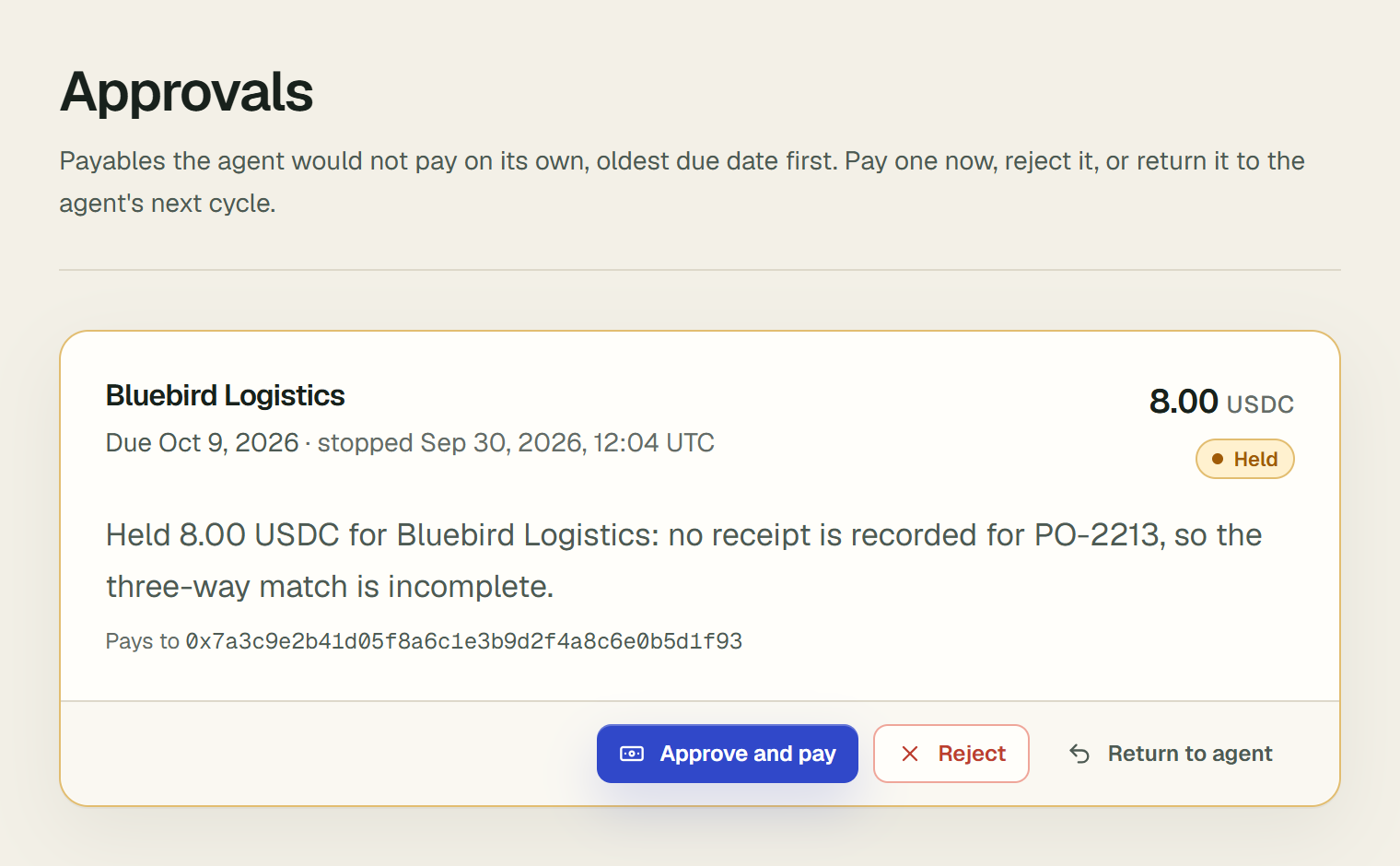
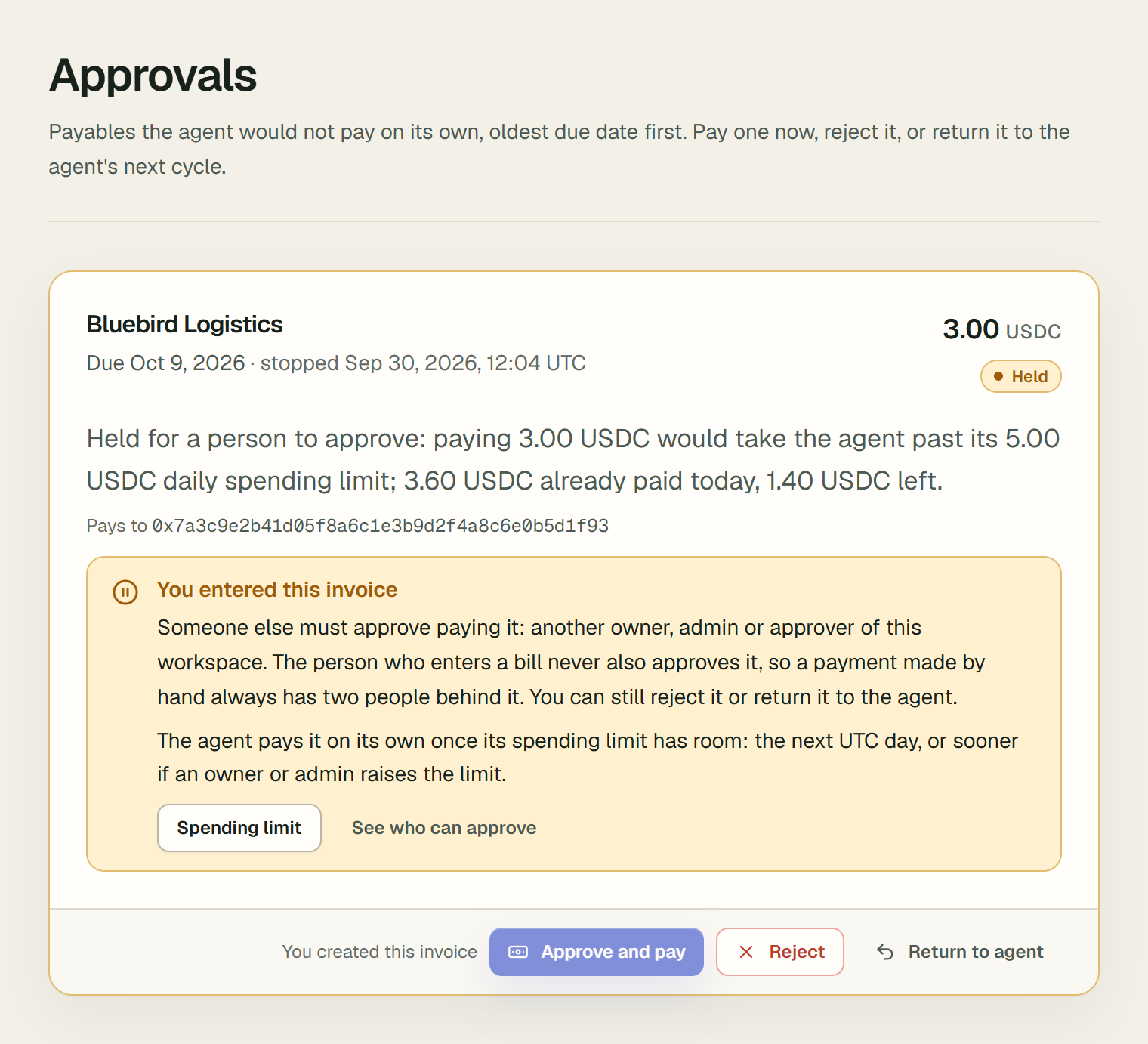
Approve and pay is disabled in two cases, and the card says why, and what you can do instead:
- You entered this invoice. Beside the disabled button, the card says "You created this invoice". The person who adds an invoice cannot also approve it, so a payment made by hand always has two people behind it: another owner, admin or approver decides it. The card says so, and you can still reject it or return it to the agent. See who can approve opens Members. When a rule stopped the agent, the card also says what happens without anyone approving: for the agent's spending limit, "The agent pays it on its own once its spending limit has room: the next UTC day, or sooner if an owner or admin raises the limit." For a payment held for want of cash, "The agent decides it again on its own once cash comes in: USDC added to the operating wallet, or brought back from the reserve." Owners and admins also get the page that removes the cause, here Spending limit.
- You gave this payee's address. The first payment to an address needs two people behind it. Where payments are real, the agent never makes a first payment that only one person stands behind, and holds it as
counterparty.new_payee. That includes an address one member typed in, or changed and confirmed alone. Whoever gave the address cannot approve that first payment either: beside the disabled button the card says "You gave this payee's address", and another owner, admin or approver pays it.- Already two people. An address the payee sent through a payee link or GitHub and a member confirmed has two parties behind it, so the agent pays it on its own. So does one a second member confirmed.
- After the first payment, the agent pays the address on its own, and decides again any other bill to the same payee that waited for it.
- Alone in a workspace. The only approver may pay the first payment to an address they gave, as for an invoice they entered.
- Screened high risk. A counterparty screened high risk is never paid, not even by approval. If the screening matched someone else, Review screening opens the counterparty's row on Counterparties, where you mark the match Not this person; the agent then decides the invoice again.
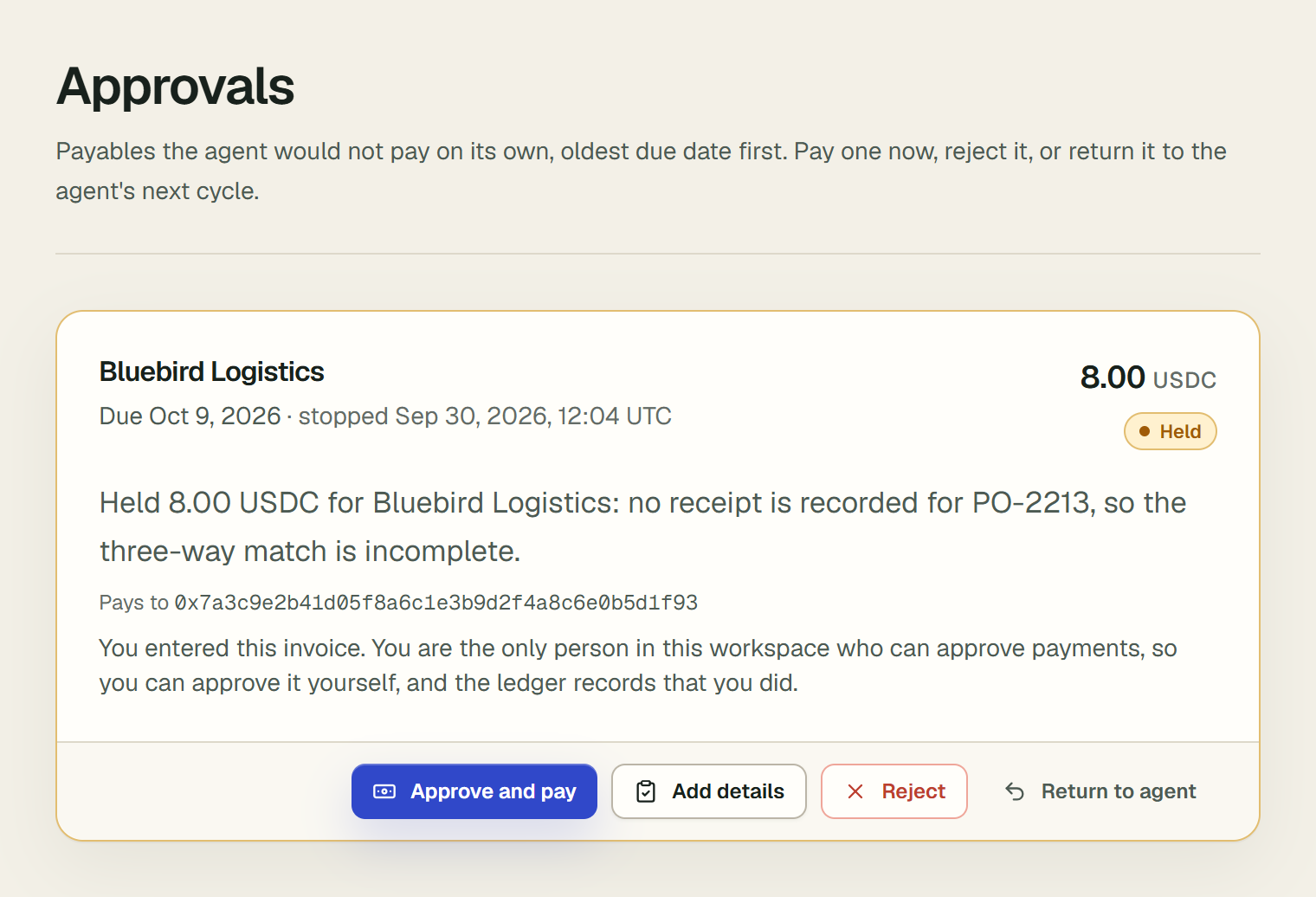
If you are the only member of the workspace who can approve payments (the only owner, admin or approver), there is nobody else to approve what you add, so Approve and pay stays enabled on your own invoices and the card says "You entered this invoice. You are the only person in this workspace who can approve payments, so you can approve it yourself, and the ledger records that you did." The confirm dialog adds "It also records that you entered it yourself, as the workspace's only approver." In the audit log, the approval_paid entry ends "(entered and approved by the workspace's only approver)". Every other check still applies: a high-risk counterparty, a changed address and a short balance are still refused. Once a second member can approve payments, the rule applies again, and each of you approves what the other entered.
If a payment attempt fails, the card says "The last payment attempt failed: " and Circle's reason, then "Approving sends a new transfer." Fix the cause first if you need to — for example, fund the operating wallet — then choose Approve and pay again to send it. Vestiarion never sends a second transfer while the first could still settle: a payment still in flight on Arc testnet instead says "The payment is still in flight on Arc testnet. It cannot be rejected or returned until Circle settles it; approving checks it again." Only Reject and Return to agent go away then — Approve and pay stays: for an invoice waiting here, approving is how its in-flight transfer is checked again, and it never sends a second one.
Sometimes Circle does not answer a payment at all, and Circle may still have taken it. Vestiarion then looks for it on Circle before anything else, and the payment stays in flight until it knows. If it waits here meanwhile, the card says "Circle did not answer when this payment was sent, so it may have taken the transfer. Approve and pay, Reject and Return look for it on Circle first: Approve and pay records it if Circle has it, and sends it only once Circle shows none." Once Circle has listed nothing for 15 minutes after the send, it was never taken: approving sends it then, and Reject or Return to agent closes it.
If every page says "Payments are switched off for every workspace right now.", whoever runs this deployment has stopped all payments. The agent runs no cycle, and Approve and pay says the same, until they turn payments back on. Everything else still reads as usual.
When the operating wallet falls short. A payment leaves from the operating wallet, with a CCTP payout's fee on top. When the wallet holds less, and the USYC reserve holds the rest, Approve and pay brings the difference back from the reserve first, then pays:
- Before you confirm, the dialog says so, for example "The operating wallet holds 0.184239 USDC, so about 0.215761 USDC comes back from the USYC reserve first." It reads the balances last recorded; the approval reads them again.
- After paying, it says "Paid. 0.215761 USDC came back from the USYC reserve first." The audit log records the move as
cash_brought_back, by you, before theapproval_paidentry. - When the two together fall short, nothing moves, and the card says what each holds.
- If nothing came back from the reserve, nothing is sent. The payable waits in Approvals as it was, and any approval already given still stands. When Arc testnet has not confirmed the redemption yet, it says so, and asking again a minute later finds that same redemption rather than sending a second one.
- A payout to another chain through CCTP brings back a fifth more of the CCTP fee as well, since the fee is read again just before the transfer; what is left of it stays in the operating wallet. One whose fee could not be read is not covered.
Pay now on a held milestone works the same way, except for one whose USDC is being locked in escrow. A Gateway payout is paid from the Gateway balance, which the reserve does not fund.
Two approvals above a figure
An owner can make larger payments need two people. In Settings, under Two approvals, fill in Payments above (USDC) and choose Save. The section then says, for example, "Payments above 500 USDC need two approvals." Turning it on, or lowering it, needs two people who can approve payments. With fewer, it says "Two approvals need two people who can approve payments. Add an approver on Members first." Each change is signed in the audit log as approval_policy_changed.
- The agent never pays above it. Code holds a payable the agent would pay or schedule above the figure, or a milestone it would release, before anything is sent. The rule is
workspace.two_approvals. A EURC payment counts at its value in USDC. - The first approval sends nothing. A card above the figure says "No one has approved it yet.", and its button reads Approve. Choosing it records your approval, signed as
approval_given(milestone_approval_givenfor a milestone), and says "Approved. One more approval, by another person, pays it." - The second approval pays. Another owner, admin or approver sees who approved it, and Approve and pay. Their approval pays it, and the
approval_paidentry names both approvals. One person cannot give both: the button is disabled, with "You approved it" beside it. - On Contractors, a held milestone above the figure says the same, and Pay now reads Approve until the approval that pays it.
- An approval is of one payment. It holds the amount, the currency and the payee's address. If any of them changes, or the person who gave it can no longer approve payments, it no longer counts. Reject, Return to agent and Close without paying clear it. A transfer that fails needs two approvals again.
- Who gives them. As many of the two approvals as can must come from people who neither entered the payment nor gave a new payee's address. Those two people give the rest only when no one else can approve. In a workspace with one person who can approve, the button is disabled with "Needs a second approver" beside it: nothing above the figure is paid until the figure is raised or someone else can approve.
- Raising it or turning it off brings payments held for two approvals back to the agent within a minute. Turn off asks first: "Turn off two approvals?"
- A payment Circle never took is sent again by the agent only when one approval may pay it, or two people's approvals of it paid it. Otherwise it waits in Approvals, or on Contractors, for two people. This covers a figure set or lowered after the first send. Raising the figure does not bring such a payment back: two people approve it, or one returns it to the agent.
- In Slack, a card keeps its buttons after the first approval, with who approved it, so a second person can approve it there.
Add what the agent was missing
The agent pays an invoice on its own only when its three-way match is complete: the goods or services received and, unless its counterparty is paid without them, a purchase order on file. Without them it asks for more information, and the card is marked Awaiting information. If the model chooses to pay or schedule it anyway, code refuses, and the card waits the same way. When you have what it asked for, you do not need to approve the payment yourself: give the agent the facts, and it decides again.
Owners and admins choose Add details on the card. The dialog offers only what the invoice is missing: a PO reference, the Goods or services received box, or both. Fill them in and choose Add details. A message says "Details added. The agent usually decides it again within a minute."
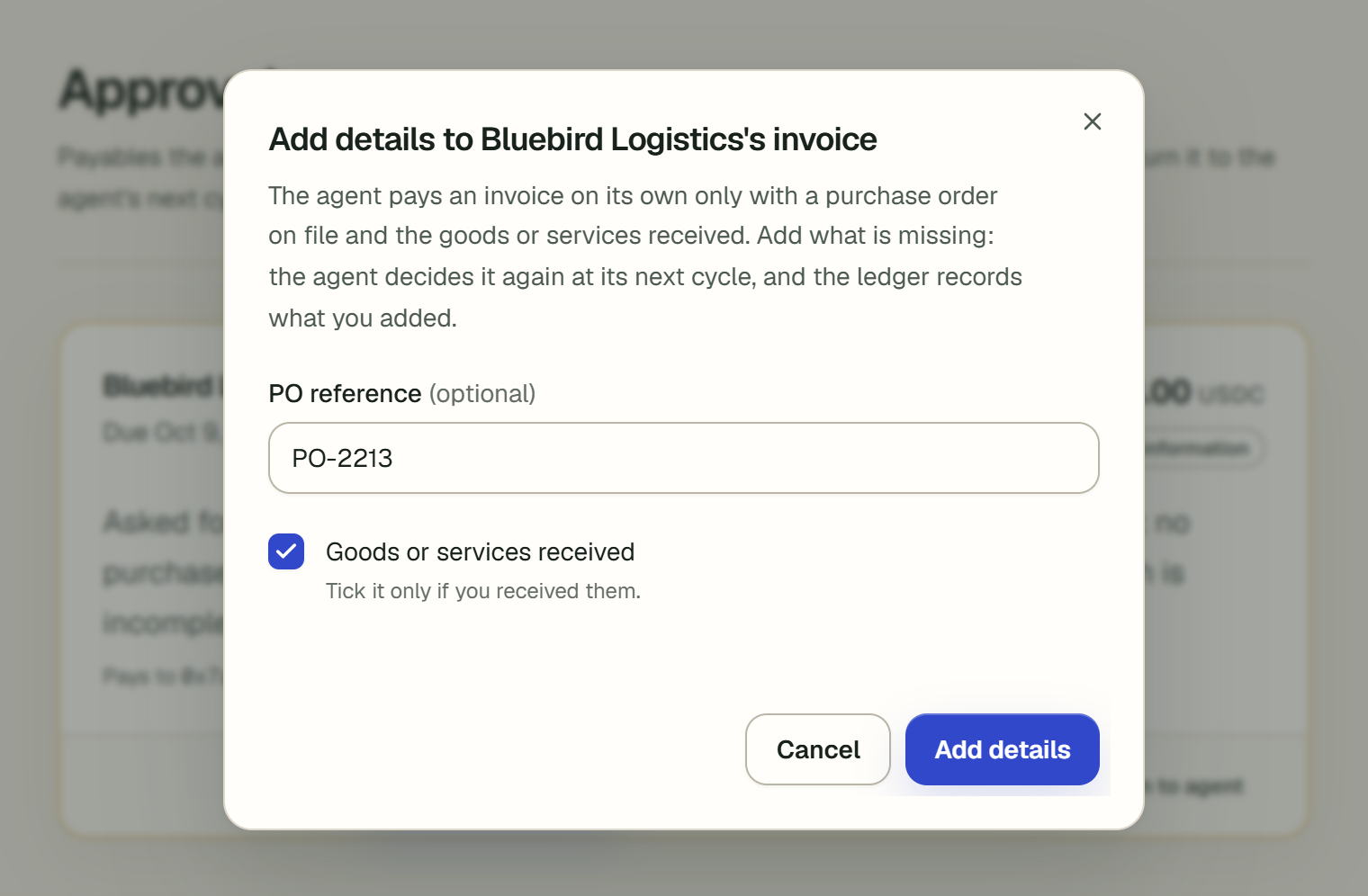
On AP / AR, the payable waits under Needs you, and its row says what it needs: "Needs a purchase order and goods received", "Needs a purchase order" or "Needs goods received". A counterparty paid without purchase orders is never asked for one. Open the row: under the agent's reasoning, its card asks for what is missing and offers Add details there too, beside Decide in Approvals, which opens Approvals at that payable's card. Once you have added details, the row reads "Details added · the agent decides it again" until it does.
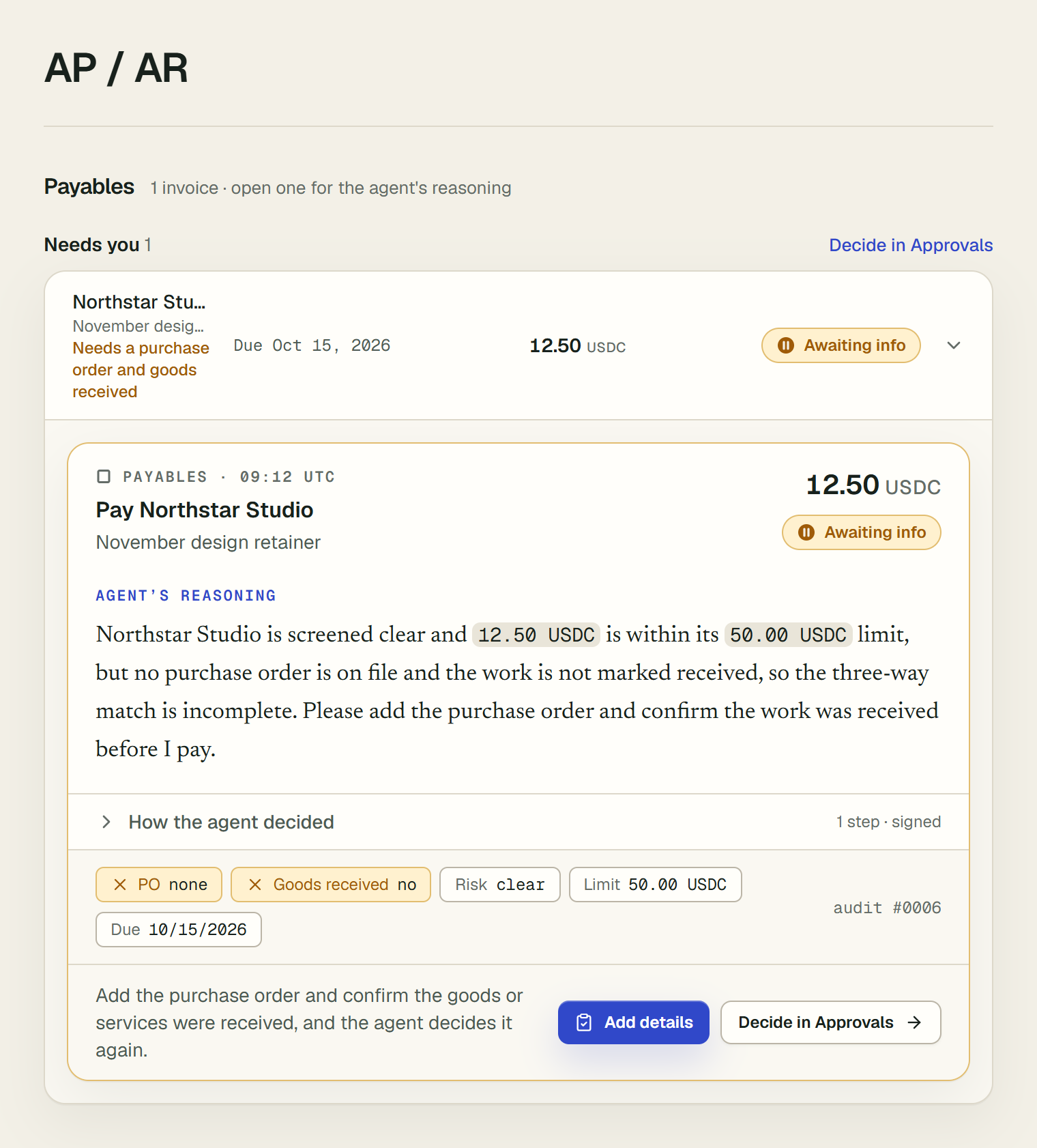
- The agent decides it again. Until it does, the card says what you added, beginning "Since the agent stopped it", and ends "The agent decides it again at its next cycle, usually within a minute." That cycle starts within seconds. The agent sees that the facts changed since its decision, records
invoice_reopenedwith what changed, and decides the invoice again with every check, as it would a new one. It may pay it, schedule it, or hold it again for another reason, such as the payment limit. - Only what is missing. A PO reference already on file, or goods already marked received, cannot be changed here.
- Recorded. The ledger records what you added, and who added it, as
invoice_details_added. A payment made after it is not counted as "Paid on time with no person involved" on www.vestiarion.xyz/open. - When it is offered. Approvers decide payments but do not enter invoices, so they do not see Add details. It is not offered once a payment for the invoice was sent, or while someone else is deciding it.
Tell the payee it was paid
A business usually tells a supplier when it pays them. Give a counterparty a Billing email, when you add it or later on its row on Counterparties, where Billing email shows the address with Add or Edit (owners and admins; empty turns notices off). Someone you pay with Pay a freelancer gets them at the email you gave for the link.
Each time a payment to it is confirmed on Arc testnet, whoever approved it, the agent or a person, Vestiarion emails that address from no-reply@vestiarion.xyz: "Workspace paid you amount", what it pays for (the invoice's memo and purchase order, or the milestone's title), the address it went to, when, and View the transaction on Arcscan.
- Real payments only. Only a live workspace sends them: a sandbox's payments are simulated, and it emails no one.
- On Arc. This version sends them for payments made on Arc testnet; a payee paid on another chain gets none yet.
- Once. Each payment is told once. A notice that cannot be sent is tried again at the next cycle, for three days.
- Recorded. Each notice sent is a
payment_notice_sententry in the audit log, with the address partly hidden.
When the agent suggests a higher limit
When people keep approving one counterparty's payments above its payment limit, the agent notices. It proposes a higher limit, so payments like these stop waiting for a person.
- When. At least two payments approved above the limit in the last 30 days, and none rejected. The counterparty must be screened clear.
- What it proposes. The model decides whether to propose and which limit. Code accepts a limit only between the largest approved payment and twice it; otherwise the proposal is the largest plus 10%, rounded up.
- Where it shows. It appears at the top of Approvals under Suggested by the agent: the new limit, why, and each approval it rests on. The proposal is signed as
policy_proposal_made. - Accept changes the limit exactly as editing it on Counterparties would. Payments held under the old limit are decided again within a minute. It is signed as
policy_proposal_accepted. - Dismiss changes nothing, and is signed as
policy_proposal_dismissed. The agent suggests a limit for that counterparty again only after a new approval above it.
Only owners and admins accept or dismiss, as for any limit change.
7. See it on Arc and in the audit log
On the Arc explorer. On a settled decision card, the transaction hash is a link. It opens the transaction on the Arc testnet explorer, at https://explorer.testnet.arc.io/tx/ followed by the hash, in a new tab.
In the audit log. The card's audit # link opens the entry in Audit log. As that page says, "Every decision is appended here, hash-linked to the one before it and signed with Ed25519." Expand an entry to see its hash, the previous entry's hash, its body hash, its signature and the full detail. Verify hash chain checks every signature and every link, and answers "Chain intact" when all of them hold.
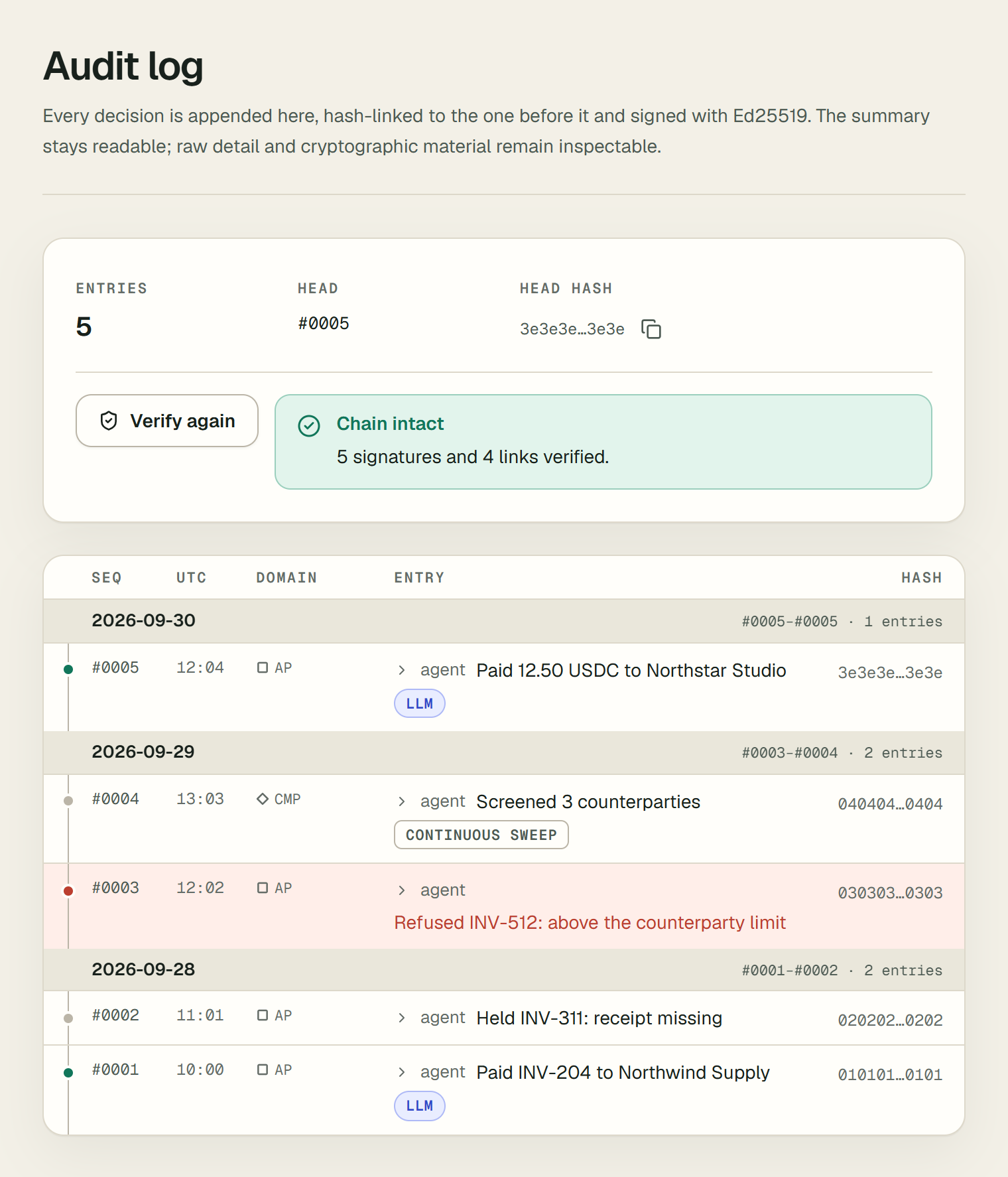
To check a signature yourself, see Verifying signatures. To read the ledger from your own code, see List ledger entries and Verify the ledger.
8. Share a receipt
A payee, an accountant or anyone else can check a payment without an account: share its receipt.
- Sharing it. On AP / AR, open a paid payable's row: one with a transaction on chain shows Share receipt to an owner or admin. It makes a link to a public page. Copy the link then: it is shown only once.
- What the page shows. The amount, the payee's chain and address, and how it was paid, with the fee. It also shows the transaction, linked to its explorer; for a CCTP payout, the burn on Arc testnet as well.
- The three checks the page makes.
- Signed by the paying workspace. The receipt is a ledger entry the workspace signed when it was shared. Its signature, body hash and chain hash are checked, and checked again in the reader's browser.
- Recorded when it was paid. The entry that recorded the payment is checked and found to name its transaction. Its content stays private.
- On the payee's chain. The chain shows a transfer of the amount to the payee in that transaction.
- Check it yourself. This section holds the signed entry, its hashes and the workspace's public key, for checking without Vestiarion.
- No names. The page shows no business, payee or person names, and no reasoning.
- Changing the link. A shared receipt shows Receipt shared:
- New link makes a new link, and the old one stops working.
- Stop sharing turns the link off.
- A link that no longer works says so and shows nothing else.
- Which payments. Only live payments have receipts: a simulated payment has nothing on chain to show. A CCTP payout can be shared once the payee's chain has minted it.
9. Get paid by a client
A receivable is money a client owes the business. In a live workspace, an owner or admin can send the client a link to pay it on Arc testnet:
- Make the link. On AP / AR, under Receivables, open the invoice's row and choose Get paid on Arc, then Copy link and send it. A new link replaces the old one.
- The client pays. The link opens a page with the amount, the due date, what it is for, and the workspace's address on Arc testnet. The client sends exactly that amount from any wallet and can choose I have paid, which only asks Vestiarion to look now.
- The agent matches it. Every cycle, and on I have paid, Vestiarion reads the transfers that arrived in the operating wallet from Circle. A transfer of the same currency and amount as an open receivable, arriving after the receivable was added, settles it: from the client's own address on file, or, from any address, when it is the only such receivable and its client was sent the link. The receivable becomes received with its transaction, and the ledger records
ar_received. Two open receivables of the same amount, with nothing to tell them apart, stay open for a person.
Only a matched transfer counts as money received. Testnet faucet drips and swaps also arrive in the wallet, and they settle nothing.
The link stays on the invoice's row: Copy link copies it again at any time. A link made before October 3, 2026 cannot be shown again; Make a new link replaces it.
Let the agent remind the client
A client who forgets to pay can be reminded by the agent, by email, with the pay link. On AP / AR, under the open receivable, choose Remind the client by email (owners and admins, in a live workspace). It needs the client's Billing email: without one, the row offers Add billing email, which opens the client's row on Counterparties.
From then on, each cycle, the agent decides whether to send a reminder now or to wait, and how firmly. Code sets the bounds:
- When. From 3 days before the due date to 30 days after it, at most every 3 days, and at most 4 reminders. The written policy sends one 3 days before the due date, one on it, one 3 days after it and the last one 10 days after it; the model may wait up to 3 days at a time, and says why.
- How firmly. Friendly at any time; firm only after the due date; final only 7 days after it, once 2 reminders went out. A firmer tone than allowed goes out as the firmest allowed, and the audit log says so.
- What it says. A fixed text by tone: who asks, how much, what for, when it was due and how late it is, with Pay on Arc testnet, which opens the pay link. Nothing the model writes reaches the client.
- When it stops. Once the agent matches the payment, or a person rejects the receivable, or after the final reminder. The row then says to follow up with the client yourself.
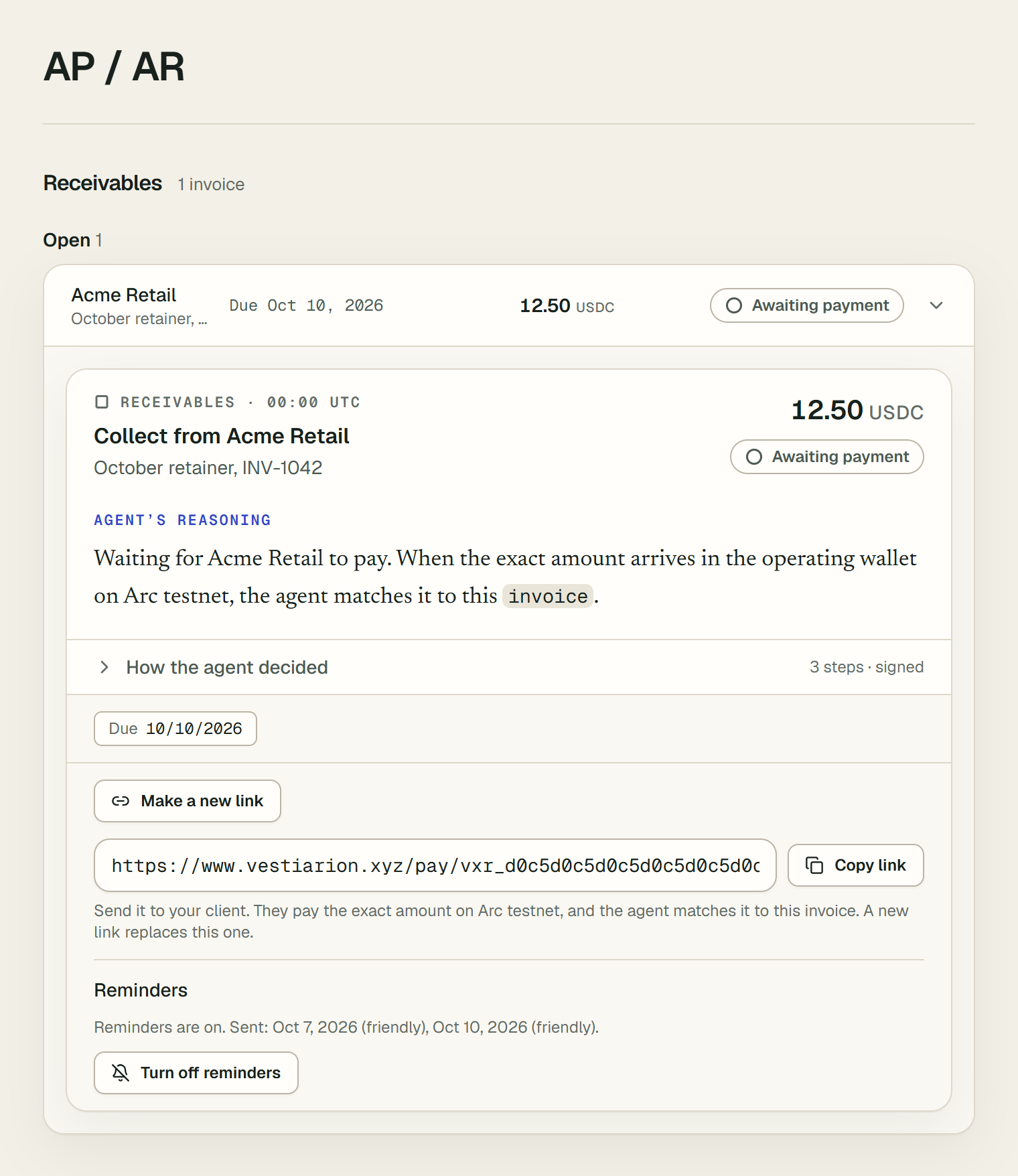
The row shows the reminders sent so far, with their dates and tones, and until when the agent waits. Turn off reminders stops them. Each reminder is a signed ar_reminder_sent entry, each wait an ar_reminder_deferred one, and both appear under the invoice's How the agent decided. Turning reminders on or off is signed as ar_reminders_on or ar_reminders_off.